
Your computer’s speed really depends on how fast your storage works. Old-school hard drives just can’t keep up and end up slowing down basic stuff you do every day.
Upgrading to a solid-state drive gives you a big, instant boost in boot times, app loading, and general system snappiness. SSDs rely on flash memory, not spinning disks, so they’re way faster, use less power, and don’t turn your laptop into a tiny space heater.
Upgrading isn’t rocket science, but you do need to pick the right SSD size, back up your data, and move your operating system and files over. Modern SSDs offer reliable performance and wipe out those annoying delays from creaky old hard drives.
People who switch to SSDs often notice their computers start in seconds, not minutes. Programs pop open practically right away.
This guide will walk you through the whole SSD upgrade process—from picking a drive to getting the best performance after you plug it in.
Most folks can handle these steps themselves, honestly. And if your computer’s starting to feel sluggish, it’s probably worth the effort.
Key Takeaways
- Upgrading from a traditional hard drive to an SSD gives you faster boot times and a much zippier feel for everyday tasks.
- You’ll need to choose the right SSD, back up your data, and migrate your operating system to the new drive.
- Tweaking a few settings and practicing good maintenance helps SSDs stay fast and last longer.
Why Upgrade to Solid-State Drives
Solid-state drives bring real, measurable improvements in speed, durability, and efficiency. The difference is obvious: less waiting, more reliability, and an all-around smoother experience whether you’re on a desktop or a laptop.
Key Performance Gains From SSDs
SSDs leave HDDs in the dust on just about every metric. Old hard drives write at maybe 50-120 MB/s, while SATA SSDs can hit 550 MB/s.
Jump to NVMe SSDs, especially those with PCIe 4.0, and you’re looking at up to 7,000 MB/s or more. That’s not just a little faster—it’s a whole new ballgame.
Booting up drops from minutes to seconds. Apps, even the heavy ones, launch almost before you can blink.
File transfers and updates finish way faster than you’re used to.
You’ll feel the difference right away. Database queries zip by, video editing tools finally keep up with 4K footage, and those virtual memory slowdowns? They basically disappear.
Common SSD Performance Metrics:
| Storage Type | Read Speed | Write Speed | Boot Time |
|---|---|---|---|
| HDD | 80-160 MB/s | 50-120 MB/s | 30-90 seconds |
| SATA SSD | 500-550 MB/s | 450-520 MB/s | 10-20 seconds |
| NVMe SSD | 3,500-7,300 MB/s | 3,000-7,000 MB/s | 5-10 seconds |
Improved System Responsiveness and Productivity
Swap out an HDD for an SSD and suddenly your computer actually listens to you. Programs open without that awkward pause.
You can run a bunch of stuff at once without your system grinding to a halt. Flipping between tasks feels instant.
Those tiny time savings add up. Less staring at loading bars means more time actually getting things done.
SSDs ditch the moving parts, so data access is all about electronic speed—not waiting for a disk to spin around.
It’s a game changer for anyone working with big files, coding, or crunching data. Creatives, developers, analysts—they all get a serious productivity bump.
SSD vs. HDD: Speed, Reliability, and Lifespan
HDDs have to keep things spinning, which means heat and, eventually, breakdowns. SSDs don’t have any moving parts, so they stay cooler and shrug off bumps or drops.
The risk of losing data from a mechanical failure drops a lot with SSDs. No spinning disks means no worn-out bearings or head crashes.
They also sip less power. That means longer battery life for laptops and maybe even a slightly lower electric bill for desktops.
SSD Advantages:
- Speed: 10-100x faster access
- Durability: Nothing moving, less to break
- Weight: Lighter, thanks to compact design
- Noise: Silent, unlike those whirring HDDs
- Power: More efficient, better battery life
- Temperature: Runs cooler, less thermal stress
SSDs come in all sorts of shapes and sizes—2.5-inch, M.2, mSATA—so you can stick them in places a regular hard drive won’t fit. Handy if you’re upgrading a tiny laptop or a weirdly small desktop.
Choosing the Right SSD for Your Upgrade
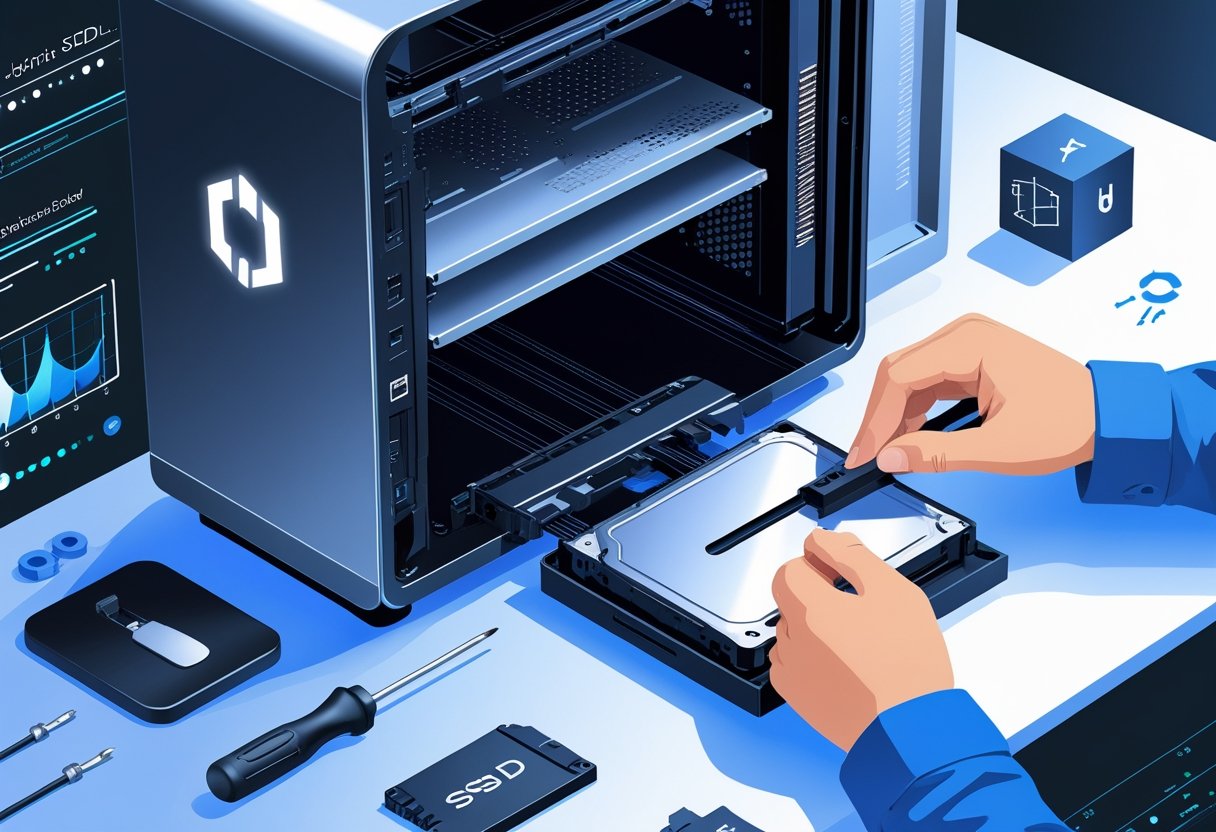
Picking an SSD isn’t just about grabbing the cheapest one you see. You’ll want to look at interface types, performance numbers, and whether it’ll actually fit in your machine.
SATA, NVMe, and M.2: Understanding SSD Types
SATA SSDs use the same connections as old hard drives and max out around 550 MB/s. They’re compatible with just about any system that has a SATA port and are usually the budget-friendly pick.
NVMe SSDs are a big step up. They plug into PCIe slots and can hit between 3,500 MB/s and 7,000 MB/s, depending on which PCIe version you’ve got.
PCIe 4.0 drives are the speed demons here, but even PCIe 3.0 models are no slouch.
M.2 is just the shape of the drive, not how it talks to your computer. An M.2 SSD might use SATA or NVMe, so double-check before you buy.
M.2 NVMe drives are the fastest, but you need an M.2 slot on your motherboard that supports NVMe. M.2 SATA drives fit the same slot but aren’t any faster than regular SATA.
Capacity, Speed, and DRAM Cache Considerations
How much space you need depends on what you actually do. If you’re just running the OS and a few apps, 500GB is usually enough.
If you have a decent-sized game library or work with lots of files, 1TB makes more sense. Heavy media hoarders or gamers? You’ll want 2TB or more, probably.
Big sequential read/write numbers look impressive, but for daily stuff, random read/write speeds (IOPS) matter more. That’s what makes apps and files open fast.
Drives with DRAM cache keep things speedy, especially during big transfers. DRAMless SSDs are cheaper but can bog down under heavy loads.
If you mostly browse and do office work, a DRAMless drive might be fine. But if you’re editing video or gaming, spring for a drive with DRAM.
Compatibility With Desktops, Laptops, and Motherboards
Most modern desktop motherboards have a few M.2 slots and plenty of SATA ports. Newer boards support PCIe 4.0 or even 5.0, but older ones are stuck at PCIe 3.0.
Check your motherboard manual to see what’s actually supported.
Laptops usually have just one M.2 slot, and you’ll need to know the exact length—common ones are 2280 (80mm) and 2242 (42mm). Look at the existing drive if you’re not sure.
Some desktop motherboards share bandwidth between M.2 and SATA ports, so plugging in one drive might disable another port. It’s a hassle, but the specs should spell it out.
If you’re planning to run a bunch of drives, double-check that you won’t run into weird conflicts.
Preparing for Hard Drive Replacement
Before you start swapping drives, make sure you’ve backed up your data, have the right tools, and know your hardware and software will actually work with the new SSD.
Backing Up Data Safely
Always back up your stuff—seriously. Use at least two methods: an external hard drive for local copies, plus a cloud service for off-site backup.
Windows users can try File History or something like EaseUS Todo Backup or Macrium Reflect. macOS folks get Time Machine, which is dead simple. Linux users have rsync and Déjà Dup.
Cloning software lets you copy your whole system over, so you don’t have to reinstall everything from scratch. Just make sure your SSD is big enough for all your data before you start.
After backing up, check that your important files made it over. Try restoring a file or two—better safe than sorry.
Essential Tools and Equipment
You’ll need a few tools for the physical swap. Most computers just need a Phillips screwdriver, but some HP and Apple models want Torx or those weird pentalobe drivers.
An anti-static wrist strap is a good idea, though lots of people just touch some bare metal to ground themselves.
SATA data cables and power connectors usually come with desktop SSDs. Laptops might need an M.2 screw or a 2.5-inch bracket. Check your manual or the manufacturer’s site to see what’s required.
A USB-to-SATA adapter is handy if you want to clone your drive before opening your computer. It lets you hook up the new SSD externally for the transfer.
Ensuring Hardware and Software Compatibility
Most SSDs use SATA III or NVMe (M.2) interfaces, but your motherboard has to support whichever you pick. Really old computers (pre-2010) might only have SATA II, which will slow things down.
NVMe drives need a compatible M.2 slot on your motherboard. Make sure you’ve got the right keying (B-key, M-key, or B+M-key)—it’s easy to overlook.
You’ll want at least 256GB for general use, but 512GB or more is better if you do anything intensive.
File system matters too. NTFS is for Windows, APFS is for modern Macs, and exFAT works everywhere if you’re using external drives.
Don’t forget firmware updates for your SSD and motherboard BIOS. They can fix bugs and help your new drive work smoothly, especially with newer NVMe models.
Seamless Data Migration and SSD Installation
Getting your SSD up and running comes down to three main things: cloning your old drive so you keep your OS and files, physically installing the SSD, and tweaking BIOS settings (like AHCI mode) for best results.
Cloning Your Existing Drive
Cloning software copies everything from your old drive to your new SSD—Windows, apps, files, the whole deal. Tools like EaseUS Todo Backup, Acronis True Image, and Samsung Magician (if you’re using a Samsung SSD) make this pretty painless.
You can connect the SSD with a USB adapter or just install it inside before cloning. The software creates a bootable copy, so you don’t have to reinstall Windows.
Make sure your SSD has enough space for everything on your old drive. Running the Windows defrag tool on your old HDD first can make the cloning process a bit smoother.
Look for an “Optimize for SSD” option in your cloning software. It’ll align partitions properly so your new drive runs at full speed and lasts longer.
Cloning usually takes anywhere from half an hour to a few hours, depending on how much data you’ve got. Some programs can even shut down your computer for you when it’s done.
Installing the SSD in Your System
Desktop computers usually accommodate SSDs in standard 2.5-inch drive bays with mounting brackets.
Most newer cases come with dedicated SSD mounting points, so you can secure the drive with screws without much hassle.
To connect the SSD, you’ll use a SATA data cable that runs from the drive to the motherboard.
Don’t forget the SATA power connector from your power supply—both need to snap in securely.
Laptop installation can be a little unpredictable, depending on the model.
Many laptops have a bottom panel with screws that let you access the drive bay, making swaps straightforward.
Just remove the old hard drive and slide the SSD into the same connector.
On some laptops, though, you’ll need to take the whole thing apart to reach the drive bay.
Definitely check the manufacturer’s documentation before diving in.
M.2 SSDs are a different beast—they slot straight into the motherboard, no cables required.
You just insert the drive at a slight angle and secure it with a single screw.
Configuring BIOS and AHCI Mode
Once the SSD’s installed, you’ll need to jump into the BIOS to set it as the primary boot device.
Getting into BIOS usually means pressing F2, Delete, or sometimes F12 right as your computer starts—manufacturers love to mix it up.
AHCI mode (Advanced Host Controller Interface) is important since it enables features like NCQ and hot-swapping, which really help SSDs run at their best.
You’ll want to find the SATA configuration section in BIOS and switch the controller mode from IDE or RAID to AHCI.
Heads up: flipping this setting after Windows is already installed can cause boot issues.
It’s best to set AHCI before installing Windows, or you’ll be fiddling with registry edits to avoid startup errors.
In Device Manager, expand “IDE ATA/ATAPI controllers” and look for something labeled “AHCI Controller.”
If you don’t see it, you’re probably still in IDE mode.
While you’re in BIOS, adjust the boot order so the SSD is first in line.
Move it to the top of the list and make sure to save before you exit.
Critical SSD Optimization and Maintenance Steps
After upgrading to an SSD, there are a few Windows tweaks you’ll want to make.
These changes help you get the most performance and lifespan from your new drive.
Enabling TRIM and Garbage Collection
TRIM lets Windows tell your SSD which data blocks aren’t needed anymore, so the drive can prep them for new data with garbage collection.
This keeps your SSD from getting bogged down by leftover junk data.
Windows 10 and 11 usually enable TRIM by default, but it’s worth double-checking.
Pop open Command Prompt as admin and run fsutil behavior query DisableDeleteNotify.
If you see DisableDeleteNotify = 0, you’re good—TRIM is active.
If it says 1, just run fsutil behavior set DisableDeleteNotify 0 to turn it on.
Most SSDs these days handle garbage collection on their own, thanks to smarter firmware.
Some brands like Kingston offer SSD manager software that not only checks TRIM status but also keeps an eye on drive health.
You can grab these tools from the manufacturer’s website to keep maintenance on track.
Updating SSD Firmware and Drivers
SSD firmware updates can squash bugs, boost compatibility, and sometimes even speed things up.
Manufacturers roll out updates now and then to improve how the drive handles garbage collection and other behind-the-scenes magic.
It’s a good idea to check your SSD brand’s website every few months for updates.
Tools like Kingston SSD Manager, Samsung Magician, and Crucial Storage Executive can automate this—they’ll notify you when it’s time and walk you through the process.
Always back up important files before updating firmware.
Install the latest chipset drivers from your motherboard’s support page, too, so everything talks nicely.
And whatever you do, don’t interrupt a firmware update midway—it could brick your drive.
Disabling Indexing, Hibernation, and System Restore
Windows Search indexing is always scanning and cataloging files, which means lots of extra writes to your SSD.
Since SSDs are already blazing fast (seriously, CrystalDiskMark shows sub-millisecond access times), indexing doesn’t add much.
To disable it, right-click your SSD in File Explorer, hit Properties, and uncheck “Allow files on this drive to have contents indexed.”
That should cut down on unnecessary write cycles without hurting your search experience.
Hibernation is another culprit—it dumps your RAM contents to disk, eating up storage equal to your system memory.
To turn it off, open Command Prompt as admin and type powercfg /h off.
You’ll free up a chunk of space and avoid extra writes.
System Restore makes restore points that chew up space and generate more writes.
If you’re comfortable relying on regular backups, you can disable it: right-click This PC, go to Properties > System Protection, pick your SSD, and click Configure.
Then select Disable system protection.
Maximizing SSD Performance and Health Long Term
Keeping your SSD healthy and speedy isn’t a one-time job.
You’ll want to check in regularly and tweak a few settings, especially since the best practices can change between Windows 10, Windows 11, macOS, and Linux.
Monitoring SSD Health and Lifespan
Checking SSD health metrics once a month is a good habit.
Most brands offer their own software—Samsung Magician, Crucial Storage Executive, Western Digital Dashboard—that show you stats like remaining lifespan, total bytes written, and temperature.
SMART (Self-Monitoring, Analysis, and Reporting Technology) keeps tabs on things like wear leveling and spare blocks.
Windows users can get basic info from the “Optimize Drives” utility, but if you want more detail, something like CrystalDiskInfo works on pretty much any OS.
Temperature matters, too.
SSDs are happiest between 0°C and 70°C.
If things creep above 70°C for long, you’ll see performance drop as the drive throttles itself to stay safe.
Firmware updates can also bring performance improvements and bug fixes.
Checking for new releases every few months and applying them during downtime is just smart.
Managing Storage Usage and Power Settings
Try to keep at least 10-20% of your SSD free.
Once you fill it past 90%, write speeds can really start to tank as the controller struggles to find open blocks.
Some folks worry about the page file wearing out their SSD, but honestly, modern drives handle it just fine.
Leaving the page file on the SSD gives you better performance.
If you have 16GB of RAM or more, you might trim the page file down to 2-4GB or just let Windows manage it.
Power settings are worth a look, too.
Disable hibernation with powercfg -h off to reclaim space equal to your RAM size.
Sleep mode usually gives you all the power savings you need, minus the giant hibernation file.
Windows 10 disables Prefetch and Superfetch for SSDs automatically, but it’s not a bad idea to double-check in the Services panel.
These features were built for old-school hard drives and just add unnecessary writes to SSDs.
Performance Tweaks for Windows, macOS, and Linux
AHCI mode should be enabled in BIOS before you install your operating system. This switch turns on Native Command Queuing and TRIM support, letting your SSD handle deleted data more efficiently.
Windows-Specific Optimizations:
- To check if TRIM is on, open Command Prompt as admin and run
fsutil behavior query DisableDeleteNotify(you want a 0 for enabled). - In “Optimize Drives,” make sure disk defragmentation isn’t running—Windows usually knows not to defrag SSDs, but it doesn’t hurt to double-check.
- Turn on write caching in Device Manager under your disk’s properties for a little extra speed on write tasks.
macOS Configuration:
Apple’s own SSDs get TRIM by default. For third-party drives, you’ll need to open Terminal and type sudo trimforce enable. A quick restart seals the deal.
Linux Setup:
Most current Linux distros use TRIM by default—just add the discard option in your fstab. If you’re using ext4 or another modern filesystem, make sure your /etc/fstab has discard for your SSD partitions.
Storage controller drivers can make a real difference, no matter your OS. AMD Ryzen users should grab the latest chipset drivers, especially if you’ve got a PCIe 4.0 or 5.0 board. Intel folks—Rapid Storage Technology drivers are your friend.
Overclocking RAM? It can actually help your SSD’s performance a bit, since faster memory means less waiting around when your system grabs files.
| Platform | Key Optimization | Verification Method |
|---|---|---|
| Windows 10/11 | TRIM enabled | fsutil behavior query |
| macOS | TRIM for third-party SSDs | System Information > SATA/SATA Express |
| Linux | discard mount option | Check /etc/fstab entries |