
Mechanical keyboards really do change how you interact with your computer. They offer tactile feedback, customizable switches, and a level of durability that just blows standard membrane keyboards out of the water.
Pick the right switches, tweak your key layout, and you’ll notice faster responses, fewer mistakes, and less finger fatigue—whether you’re gaming late or just slogging through work. Honestly, the difference is obvious after a few days. Mechanical keyboards give you consistent actuation, reliable registration, and that satisfying “thock” or “click” that cheap keyboards just can’t touch.
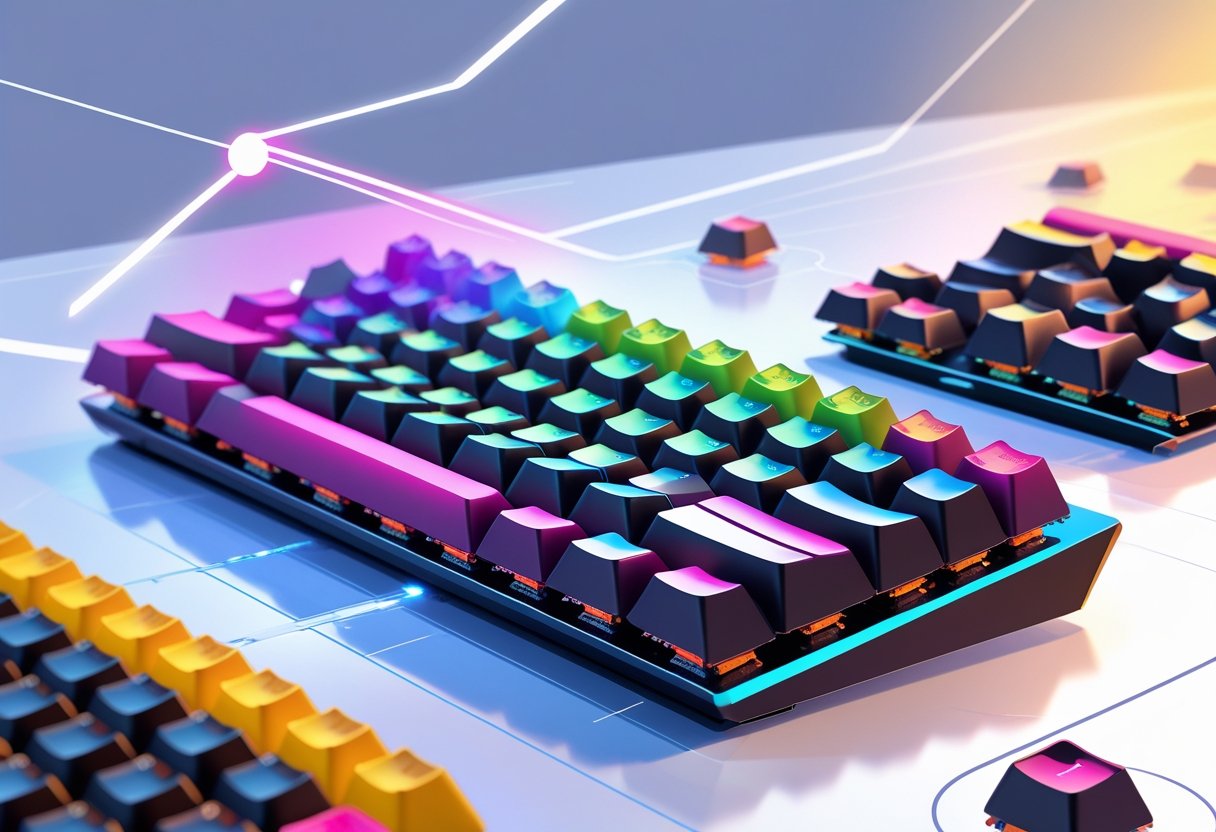
There’s a wild amount of personalization out there. Hot-swappable PCBs make changing switches a breeze, and you can program layouts to fit your workflow.
Switches come in all sorts: linear for smooth and quiet, tactile for a little feedback, and clicky if you want to hear every press. Modern boards even have gasket-mounts for better sound, wireless setups for less clutter, and per-key RGB lighting—because why not make it look cool too?
Key Takeaways
- Mechanical keyboards give you faster response times, better accuracy, and less fatigue, thanks to customizable switches and solid build quality.
- Hot-swappable boards and programmable layouts let you make your keyboard truly yours, for gaming or work.
- Choosing the right switches and ergonomic features really does make a difference in comfort and productivity.
Why Switch to Mechanical Keyboards?

Mechanical keyboards aren’t just a trend—they actually boost typing performance, last way longer, and feel better than your average membrane board. The feedback is sharper, the keystrokes are more reliable, and you don’t have to worry about replacing them every year.
Key Advantages Over Membrane Keyboards
Mechanical keyboards have a physical switch under each key. Membrane ones? Just a squishy rubber sheet.
That difference makes typing feel way more precise. Each press is registered by a real mechanism, not just pressure. You feel exactly when a key activates—no more guessing.
Switch customization is where things get interesting. You can pick:
- Linear switches for smooth, quiet presses.
- Tactile switches with a little bump for feedback.
- Clicky switches if you want both feel and sound.
Membrane boards don’t offer any of that. It’s one-size-fits-all, and honestly, it’s just mushy. Mechanical keyboards also let you swap keycaps and program keys—pretty rare on membrane models.
Impact on Typing Speed and Accuracy
Typing speed gets a real boost with mechanical boards. Faster actuation and less key travel help you build up rhythm.
Studies say up to 90% of users notice they type faster after switching. The clear actuation points mean fewer missed presses and less “oops, wrong key.”
Accuracy improves because you get instant feedback when a key registers. That loop helps you catch mistakes before they happen. Mechanical switches also help prevent accidental presses, especially during gaming or rapid typing.
Finger fatigue? It drops off when you pick the right switches. If you’re typing all day, ergonomic designs and customizable actuation forces make a huge difference.
Durability and Longevity
Mechanical switches are beasts—they’re rated for 50-100 million keystrokes. Membrane keyboards? Maybe 5-10 million if you’re lucky.
Build quality is another level. You’ll see reinforced frames, metal parts—sometimes aluminum or steel—while membrane boards are usually just plastic. If a switch fails, you can swap it. No need to toss the whole board.
The upfront cost is higher, sure, but you won’t need to replace it every couple of years. With basic care, a mechanical keyboard can last 5-10 years. Membrane ones usually tap out in 1-3.
Understanding Mechanical Switch Types
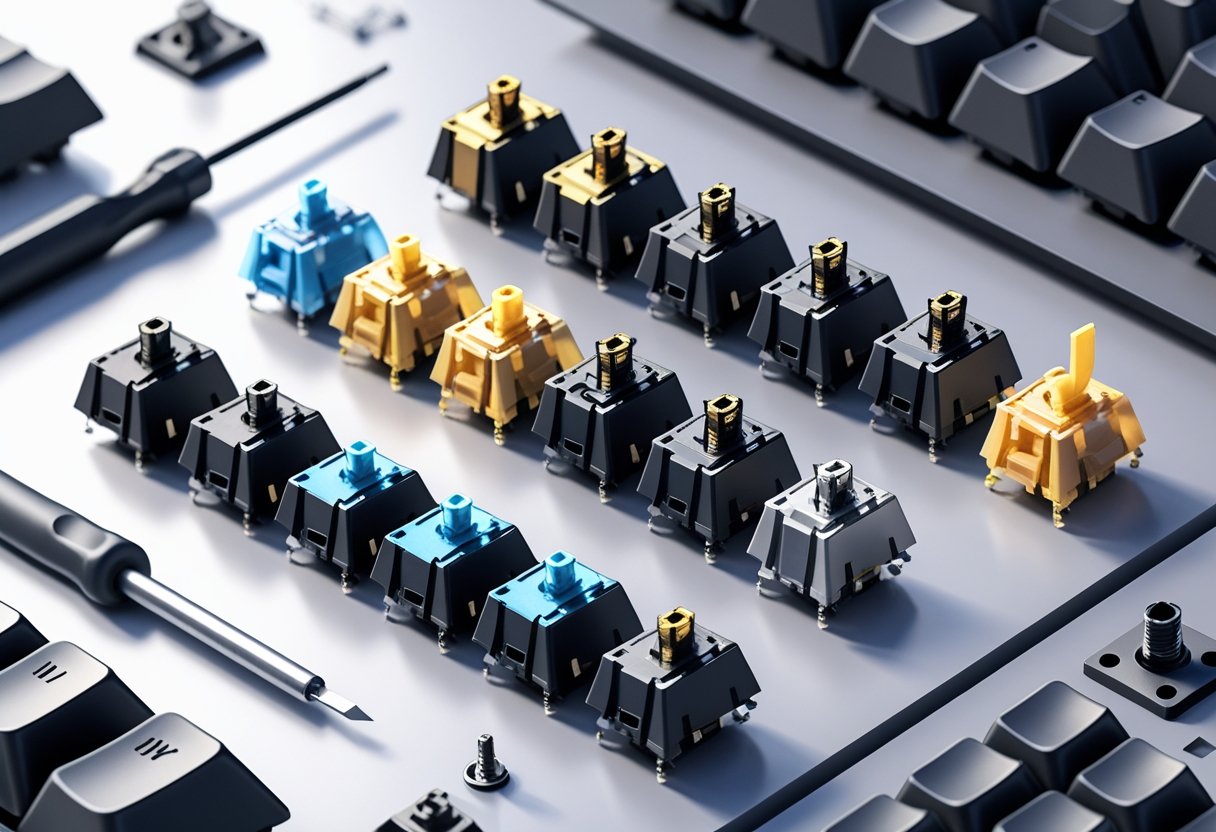
Switches are the heart of the board. There are three main types: linear, tactile, and clicky. Each one feels—and sounds—totally different.
Linear Switches: Speed and Smoothness
Linear switches don’t have bumps or clicks. They just go straight down, smooth as butter.
Gamers love them because there’s less resistance and you can spam keys super fast. Cherry MX Red is the classic, needing just 45g of force. Gateron makes some nice, budget-friendly versions too.
You don’t get much feedback, so you’ll probably bottom out the keys at first. But once you get used to it, you can type quickly and quietly.
Popular Linear Switches:
- Cherry MX Red (45g)
- Cherry MX Black (60g)
- Gateron Yellow (50g)
- Gateron Red (45g)
Tactile Switches: Feedback for Comfort
Tactile switches have a bump right at the actuation point. No loud click, just a little nudge to let you know you’ve pressed the key.
Cherry MX Brown is the go-to here, with a 45g force and a subtle bump. TTC Brown switches feel pretty similar, maybe a bit more or less bumpy depending on the brand.
The bump helps you type more accurately and with less fatigue. They’re a solid choice if you want feedback but don’t want to annoy everyone around you.
Clicky Switches: Auditory and Physical Cues
Clicky switches are for folks who want both the bump and a loud, satisfying click. Cherry MX Blue is the classic example—50g of force and a sharp, distinct sound.
The click is actually a separate mechanism, so you get sound even if you don’t bottom out. Some people love the rhythm and confirmation, but it can drive your coworkers nuts.
Clicky switches can help with accuracy, especially if you rely on sound cues. But in shared spaces or during voice chats, they’re probably not ideal.
Customization Options for a Personalized Typing Experience
Mechanical keyboards are all about making things your own. You can swap keycaps, change switches, program keys, and mess with lighting until it’s just right for you.
Keycap Materials and Profiles
Keycap material matters more than you’d think. PBT keycaps last longer and don’t get shiny as quickly as ABS ones. They have a bit of texture, which feels nice under your fingers.
Profiles change the shape and height of the keys. Cherry sits low, SA is tall and sculpted, OEM is somewhere in the middle, and DSA is flat all the way across.
Higher profiles give you more feedback, but require more finger movement. Lower profiles are faster and easier on your hands if you’re typing all day.
Hot-Swappable and Swappable Switches
Hot-swappable keyboards let you pop out switches and try new ones—no soldering required. It’s a game changer if you like to experiment.
You can try linear, tactile, or clicky switches on the same board. Some people even mix and match: heavier switches for modifiers, lighter ones for regular keys. It’s all about what feels best to you.
Programmable Keys and Layout Customization
Programmable keys are a productivity hack. With software like VIA or QMK, you can remap keys, create macros, or set up layers for different tasks.
Macros can automate stuff like signatures, code snippets, or game combos. Layers let you switch layouts on the fly—great for gamers and programmers alike.
Custom layouts help you work the way you want. Maybe you want arrow keys on the home row, or special symbols in easy-to-reach spots. It’s all possible.
RGB Lighting and Aesthetic Features
Per-key RGB lighting is more than just eye candy. You can color-code keys for function, highlight important ones, or just set the vibe for your space.
Lighting can be practical. Maybe blue for numbers, red for function keys, green for modifiers. Reactive lighting shows you which keys you’ve pressed, which is kind of fun.
Most boards let you tweak effects—waves, ripples, breathing, or just a static color. You can save profiles and adjust brightness to fit your mood or the room.
Ergonomics and Typing Comfort
Mechanical keyboards can make typing more comfortable if you pick the right setup. It’s about preventing fatigue, supporting your wrists, and finding a layout that works for you.
Preventing Finger and Typing Fatigue
Finger fatigue is real, especially if you’re pounding away on stiff keys all day. Membrane keyboards often need 60-70g of force per press, which adds up.
Mechanical switches usually need only 45-55g. Lighter linear switches are great if you type nonstop. Tactile ones help you avoid bottoming out, which can save your fingers over time.
If you’re getting sore, try out different switches. Hot-swappable boards make it easy. The difference between a 45g linear and a 65g clicky is surprisingly noticeable after a long session.
Ergonomic Design and Wrist Support
Ergonomics isn’t just a buzzword. Split keyboards let your shoulders relax, and tented designs keep your wrists at a better angle.
A good wrist rest is underrated. Memory foam or gel works best, and some boards come with magnetic rests that stay put.
Adjustable feet and negative tilt options help you find the right angle. Ideally, your forearms should be parallel to the floor, with wrists straight.
If you’ve got wrist pain, look for boards with lots of adjustment options and compatible wrist rests. The right combo of switch weight and ergonomic design can make a huge difference when you’re typing for hours.
Optimizing Keyboard Layout
Keyboard layout really shapes how comfortable typing feels, from where the keys land under your fingers to how much desk space the board eats up. Compact layouts cut down the distance your hands travel to hit the keys or grab the mouse.
A TKL keyboard (that’s the 87-key type) ditches the number pad, which brings your mouse a good 4-5 inches closer. That small change can mean less shoulder ache if you’re at your desk for hours.
The 96% layout is another clever option—it keeps the number pad but squeezes everything together. You don’t lose keys, just the wasted space in between, which is a lifesaver if your desk is already crowded.
Smaller layouts tend to nudge you toward better posture since your hands don’t have to wander far. Everything you need stays within easy reach, and honestly, it just feels more efficient.
Common Layout Comparisons:
| Layout Type | Key Count | Width Reduction | Best For |
|---|---|---|---|
| Full-size | 104+ keys | Baseline | Data entry, accounting |
| TKL | 87 keys | ~4 inches | General typing, gaming |
| 96% | 96-100 keys | ~2 inches | Balanced functionality |
| 75% | 84 keys | ~5 inches | Compact efficiency |
Programmable layouts are a game-changer if you want to tweak things for your own habits. You can remap your most-used keys to spots that make sense for you, which means less finger acrobatics.
This level of customization lets you turn even a compact board into something that fits your workflow, no matter how quirky your shortcuts are.
Comparing Top Mechanical Keyboard Brands and Models
Keychron’s kind of the go-to for versatility, with hot-swappable switches and wireless connectivity. Logitech, on the other hand, leans hard into durability and features built for gamers.
Some models really shine for certain folks—like the Keychron K2 if you want something compact, or the Redragon K668 if you’re watching your wallet.
Keychron: Versatility and Customization
Keychron keyboards work across multiple operating systems and give you tons of ways to make them your own. The Keychron K2, for example, uses a 75% layout and lets you swap out switches without breaking out a soldering iron.
You get both wireless and wired options, so you’re not boxed in by your setup. Most Keychrons have aluminum frames, and they play nicely with QMK/VIA firmware if you’re into programming custom key functions.
Switch choices? Plenty—Gateron, Cherry MX, or optical, depending on what feels best to your fingers. RGB backlighting is standard, with brightness you can tweak to your liking.
Despite the small footprint, you don’t lose much thanks to layered key commands. And since they’re Mac and Windows friendly, switching between devices isn’t a headache.
Logitech: Durability and Gaming Performance
Logitech’s keyboards are built to take a beating, which is great if you’re gaming or typing nonstop. The G413 SE, for instance, uses Logitech’s own mechanical switches rated for a whopping 50 million keystrokes.
There’s a brushed aluminum top for durability, and it still looks sharp after months of use. Logitech packs in anti-ghosting and N-key rollover, so every key press registers, even if you’re mashing a bunch at once.
Media controls and programmable function keys come standard on their gaming boards, handled through the Logitech G HUB software. Wired response times hit 1ms, and the tactile feedback is satisfying whether you’re gaming or just hammering out emails.
You can pick switches with actuation forces from 50g up to 70g, so there’s a bit of choice depending on your preference.
Notable Models for Typing and Gaming
Redragon’s K668 is a solid starter, with Outemu switches and a reliable wired connection. It’s budget-friendly but still gets the job done for gaming or everyday typing.
The RK Royal Kludge S98 stands out with its 98-key layout, wireless support, and hot-swappable switches. It’s a nice compromise—numpad included, but not as bulky as a full-size board.
Aula’s lineup is worth a look, too: the Aula F99, Aula F75 Pro, and Aula F75 Pro Wireless all offer something different. The F75 Pro Wireless, for example, gives you tri-mode connectivity—Bluetooth, 2.4GHz wireless, and USB-C wired.
These models often use gasket-mounted designs, which quiet down typing and make each key feel a bit softer. It’s a subtle touch, but you notice it after a long session.
Razer’s keyboards are all about speed, thanks to their proprietary optical switches. Gamers who care about every millisecond will appreciate actuation points at just 1.5mm—quicker than the usual 2mm.
Connectivity and Key Features for Modern Workflows
Mechanical keyboards today come with a range of connection options and features that can really shape your workflow. Stuff like battery life, how you connect, and even onboard displays can make a surprising difference.
Wired vs Wireless Mechanical Keyboards
Wired mechanical keyboards are the old reliable—they don’t lag, never need recharging, and connect via USB-C for stable, unlimited use. Perfect if you’re glued to one desk and want zero fuss.
Wireless keyboards, though, look cleaner and let you put your board wherever you want. No cable clutter. The trade-off? You’ve got to keep an eye on battery levels, and there’s sometimes a tiny bit of input lag, though honestly, that’s barely noticeable these days.
Tri-mode connectivity is becoming more common. You get wired USB-C, Bluetooth, and 2.4GHz wireless all in one device. Switching between connection types is easy, which is a lifesaver if you’re juggling multiple gadgets or moving between desktop and laptop.
Cutting-Edge Connectivity: Bluetooth, 2.4GHz, and USB-C
Bluetooth 5.0 and Bluetooth 5.1 let you pair your keyboard with up to three devices at once. Switching between your computer, tablet, and phone is as simple as tapping a key.
Bluetooth works across just about anything—no dongles needed. But if you want lower latency, 2.4GHz wireless is the way to go. It uses a USB dongle, keeps response times under 1ms, and dodges interference from other wireless devices.
USB-C is now standard for wired connections. It lets you use the keyboard while charging, and it’s just faster and less finicky than micro-USB ever was.
Connection stability? It depends. 2.4GHz is rock solid for gaming or fast work. Bluetooth is fine for most everyday tasks, and wired is always the safest bet if you want to cut out all the variables.
Smart Displays, Battery Life, and Additional Functions
Battery capacity really shapes how you use a wireless keyboard. A 4000mAh battery usually gives you about 30-40 hours of active time if you keep the backlighting on.
Turn off the lighting, and suddenly that same battery can last for weeks—sometimes even months. Quick-charge is a lifesaver here, getting you back to half capacity in less than an hour.
Smart display features? These are becoming more common, with tiny OLED or LCD screens tucked right into the keyboard. You might see your battery level, connection status, or which layer is active right on the keyboard itself.
Some of these displays even tie into your favorite productivity apps. They can show things like CPU usage or how many unread messages are waiting, which is neat if you like having info at your fingertips.
A few extra functions can make a big difference:
- Hot-swappable switches let you swap out switch types—no soldering required.
- Programmable macros help automate those dull, repetitive tasks.
- N-key rollover makes sure every key registers, even if you mash a bunch at once.
- Onboard memory means your custom profiles and lighting setups go wherever your keyboard does.
Cloud connectivity is starting to pop up too. With it, your keyboard can sync settings across all your devices.
So, if you’re someone who hops between different computers or workspaces, having your layouts and macros follow you just makes sense.