
Remote work demands reliable connectivity. Yet, plenty of home offices still struggle with dropped video calls, laggy file transfers, and devices constantly fighting for bandwidth.
By deploying mesh Wi-Fi systems alongside USB-C hubs and multi-port docking stations, you can cut out connection interruptions and create a setup where multiple devices just work—no slowdowns, no drama. Basic router setups and scattered adapters? They’ll eat up your time with troubleshooting, draining productivity and throwing a wrench into critical tasks.

Modern networking peripherals tackle these headaches by extending coverage across your workspace. They consolidate device connections and optimize bandwidth so you’re not constantly fiddling with cables or losing signal.
Mesh systems blanket homes with consistent signals, wiping out dead zones. USB-C hubs and docking stations clear up cable clutter and handle power delivery and data transfer through a single connection.
The gap between a functional home office and an actually optimized one? It’s all about the infrastructure. Professional-grade peripherals bring the stability needed for video conferencing, cloud collaboration, and juggling a bunch of devices at once.
Key Takeaways
- Mesh Wi-Fi systems wipe out dead zones and provide consistent wireless coverage throughout your workspace.
- USB-C hubs and docking stations pull multiple connections into a single-cable solution, so you can ditch the clutter and simplify device management.
- Solid networking infrastructure means no more connection drops or bandwidth hiccups during video calls and file transfers.
Why Upgrade Your Home Office Connectivity
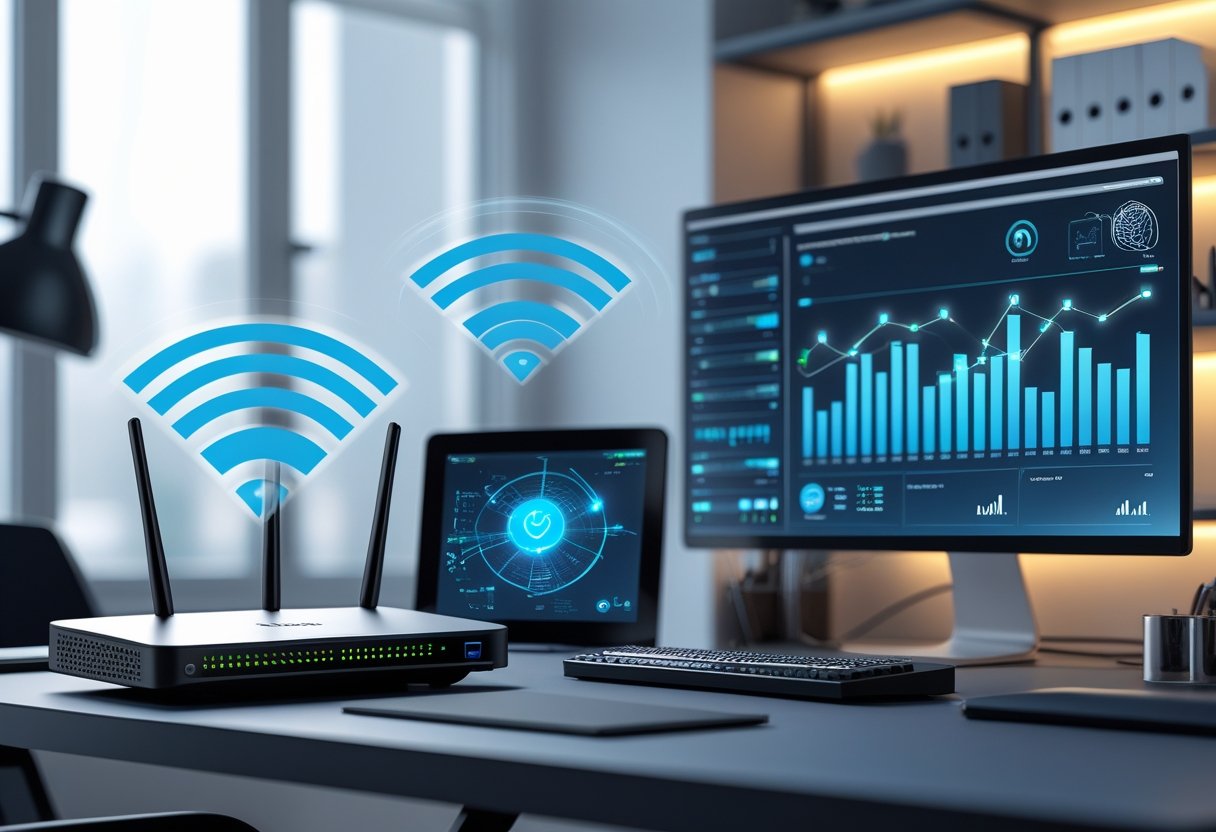
Basic home office connections create bottlenecks, costing remote workers hours each week in troubleshooting and delays. Advanced networking peripherals cut out these friction points and support the growing pile of devices most of us rely on.
Challenges of Basic Connections
Standard router setups tend to struggle with stable connections across multiple rooms and floors. Dead zones force you to sit awkwardly close to the router instead of working where you actually want.
Basic connections can’t handle lots of devices at once. Try a video call on one device while transferring files on another and you’ll probably get buffering, or worse, a dropped connection.
This gets even trickier when your home office includes laptops, monitors, phones, tablets, and smart peripherals—all fighting for the same bandwidth.
Common issues with basic setups include:
- Disconnections during video conferences
- Slow file transfers to cloud storage
- Struggles to connect more than 10-15 devices reliably
- Network congestion if multiple people work from home
- Limited ethernet ports, so you’re stuck on flaky Wi-Fi
If your network has a single point of failure, one router issue can bring your whole home office offline. That’s a risky way to work.
Benefits of an Optimized Network
Mesh Wi-Fi systems distribute connectivity evenly. These networks automatically route traffic through the strongest signal path, so you get consistent speeds wherever you set up.
Multi-port docking stations pull device management into a single spot. Just plug in your laptop and you’ve got instant access to monitors, storage, ethernet, and more—no cable juggling.
USB-C hubs can deliver up to 100W power and support 10 Gbps data transfer speeds or higher. You can skip the extra charging cables and clear up your desk.
Optimized networks let you handle bandwidth-heavy tasks at the same time. Upload a huge presentation to the cloud while running an HD video call? Not a problem.
Trends in Remote Work and Device Usage
Remote work isn’t just a temporary thing anymore. Most professionals now keep 4-6 connected devices in their home office, up from 2-3 in the old days.
Cloud platforms like Google Workspace, Microsoft 365, and Slack need fast, reliable internet for real-time work. If your connection lags, your workflow does too.
With more 4K video conferencing and screen sharing, bandwidth demands are way up. What worked for 1080p video might not cut it now.
And then there’s the IoT pile-on. Smart lights, cameras, voice assistants, and even climate controls all tap into the same network as your work gear. Modern networking peripherals can handle this expansion without slowing down your main devices.
Deploying Mesh Wi-Fi Systems for Seamless Coverage
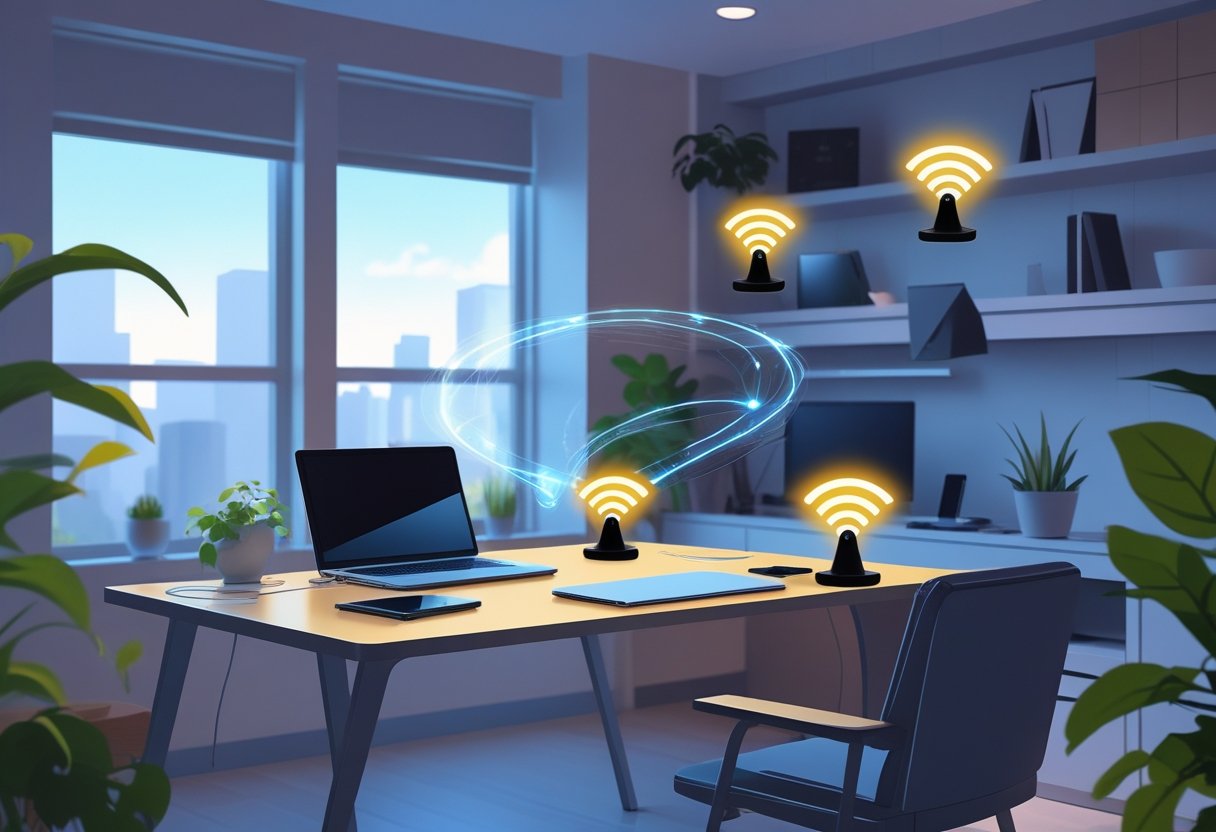
Mesh Wi-Fi systems ditch the single point of failure you get with traditional routers. By spreading network access across multiple nodes—and using modern standards like Wi-Fi 6 and Wi-Fi 7—you get reliable, whole-home coverage.
Understanding Mesh Networks Versus Traditional Routers
Traditional routers send out a signal from one spot, so everything has to connect back to that hub. Mesh networks work differently: multiple interconnected nodes talk to each other, forming a flexible web.
Each node acts as both access point and relay, giving your data more than one way to get where it’s going. If one connection gets weak, the system just reroutes through another node. That redundancy is a lifesaver.
Key differences between architectures:
| Feature | Traditional Router | Mesh System |
|---|---|---|
| Coverage pattern | Single broadcast point | Multiple interconnected nodes |
| Network name | Often requires separate SSIDs for extenders | Single SSID across all nodes |
| Failover capability | None | Automatic rerouting |
| Management | Device-by-device | Centralized app control |
Systems like Amazon Eero, TP-Link Deco, and Netgear Orbi handle seamless transitions between nodes. You can wander around your house and never lose your connection.
Eliminating Dead Zones and Expanding Wi-Fi Coverage
Dead zones pop up when walls, metal, or distance kill your wireless signal. Mesh Wi-Fi systems fix this by putting nodes throughout your home, so there’s always overlap and no gaps.
A typical mesh setup starts with one node hooked to your modem, with satellites placed where signal strength drops. Google Wifi and Eero apps show you where coverage is weak, making it easier to place new nodes.
Coverage scales with node count—two nodes usually cover 3,000 square feet, three can handle up to 5,000. Tri-band systems like Netgear Orbi and ASUS ROG Rapture GT6 dedicate a band just for node-to-node communication, so your devices don’t have to fight for bandwidth.
Mesh networks adapt to obstacles. Thick walls or metal framing? The nodes will route signals around them, not just try to blast through.
Optimizing Node Positioning and Network Topology
Where you put your nodes really matters. The main node should connect to the modem in a central spot, and satellites need to be within range of at least one other node.
A few placement tips:
- Keep nodes in open spaces, not hidden away in cabinets
- Leave 30-40 feet between nodes (less if you’ve got metal studs or concrete walls)
- Elevate them 3-5 feet off the floor
- Avoid big metal objects or clusters of electronics nearby
Most mesh systems, like Eero 6+ and TP-Link Deco, have apps that show signal strength between nodes. Green is good, yellow or red means you should move things around.
If you can run ethernet cables between nodes, do it. Wired backhaul wipes out wireless interference and frees up radio channels for your devices.
Future-Proofing with Wi-Fi 6 and Wi-Fi 7
Wi-Fi 6 mesh systems are a big leap forward. They use tricks like OFDMA and MU-MIMO to split channels and talk to multiple devices at once, not just one after another.
This is a game-changer if you have lots of devices. Video calls, cloud backups, smart home gadgets—all can run at the same time without choking the network. Wi-Fi 6 mesh systems from TP-Link Deco and Amazon Eero are built for this.
Wi-Fi 7 takes things even further. With 320 MHz channels and multi-link operation (MLO), devices can transmit across multiple bands at once, slashing latency and boosting speed. Early Wi-Fi 7 systems are already hitting 5 Gbps in real-world tests.
If you want to balance cost and future-proofing, Wi-Fi 6 is probably the sweet spot right now. Wi-Fi 7 is pricier but will handle next-gen stuff like VR meetings and 8K streaming as they become mainstream.
Advanced Device Management With USB-C Hubs and Multi-Port Docking Stations
USB-C hubs and multi-port docking stations pull all your device connections into a single port. That means you can run multiple peripherals at once, with power delivery and fast data transfer, even if your laptop’s short on ports.
Selecting the Right USB-C Hub for Your Setup
Port selection is everything. If you need external monitor support, look for HDMI or DisplayPort outputs that can handle 4K at 60Hz. Moving lots of files? You’ll want USB 3.1 Gen 2 ports for those 10Gbps speeds.
Must-have ports:
- USB-A 3.0 ports for older gear
- USB-C with data and display support
- HDMI or DisplayPort for monitors
- SD/microSD readers for content creators
- Gigabit Ethernet for rock-solid network access
Size matters too. Compact hubs with attached cables are great for travel. Bigger units with detachable cables work better on a desk. Aluminum bodies handle heat better than plastic, especially if you’re running them all day.
Don’t forget power delivery. Hubs with 85W-100W PD can charge most laptops and still power your accessories. Just keep in mind the hub itself uses some of that wattage.
Expanding Connectivity With Multi-Port Docking
Multi-port docking stations turn one USB-C connection into a full-blown workstation. You can get seven to thirteen ports, depending on the model.
Thunderbolt 4 docks hit 40Gbps data speeds and support dual 4K displays at 60Hz, or a single 8K display at 30Hz. USB-C docks with DisplayLink tech can drive three 4K monitors on Windows or Mac, but you’ll need to install drivers.
Ethernet ports on docks mean you can skip flaky Wi-Fi for file transfers and video calls. Card readers are a lifesaver for photographers—UHS-II SD slots are way faster than USB adapters.
Power Delivery and Efficient Charging Solutions
Some docks come with their own power bricks—85W to 180W adapters that can charge your laptop and run all your peripherals at once. No more performance throttling because you’re short on juice.
Pass-through charging is handy for travel. The hub gets power from your laptop charger, so you don’t need to pack another brick. The USB-C PD port usually takes 60W to 100W input and splits it between the laptop and hub.
A few docks have multiple USB-C ports with different power outputs. Front ports with 18W are perfect for phones and tablets, while rear ports with 85W can handle your laptop.
Heat can be an issue, especially with fanless, all-aluminum designs. They get warm under heavy use, but standing them up vertically helps airflow a bit. Just something to keep in mind if you’re running a lot of devices all day.
Cross-Platform Compatibility and Workflow Integration
USB-C hubs generally work across Windows, macOS, and Chrome OS—no need to worry about basic compatibility for things like USB ports, card readers, or Ethernet. Just plug them in and you’re good to go.
Display output, though, gets tricky. Some laptops support monitors through USB-C’s alternate mode with no extra steps, but others (especially with DisplayLink docks) need drivers for multi-monitor setups.
Platform-specific considerations:
- MacBooks with MagSafe: Look for hubs with notches that fit around the power connector.
- Windows laptops: DisplayLink tech gives you the most display flexibility.
- Thunderbolt 4 laptops: You’ll want a Thunderbolt dock if you care about full bandwidth.
Thunderbolt 4 hubs let you daisy-chain more docks, so you can hang a bunch of peripherals off a single port. You can connect up to six devices in a chain and still keep your transfer speeds humming.
Some docks mount behind your monitor with VESA mounts, which tucks away the mess of cables. Others just sit on your desk—horizontal, vertical, whatever fits your space and cable situation.
Maximizing Wired Connections in the Home Office
Wired connections are still the gold standard for stable gigabit speeds and low latency. If you’re video calling all day or moving big files around, you’ll notice the difference.
Laying out Ethernet cables, setting up proper backhaul, and using power over Ethernet can really make your home office network feel rock-solid.
Ethernet Backhaul and Wired Network Optimization
Ethernet backhaul means connecting your mesh satellites or Wi-Fi access points to your main router with a cable, not just relying on wireless. This gets rid of a lot of interference and frees up wireless channels for your actual devices.
A wired backhaul can boost network capacity by 40-60% in a typical home office. If you’re juggling video calls, file transfers, and streaming all at once, you’ll appreciate the breathing room on your wireless bands.
Key backhaul considerations:
- Tri-band systems: Some use a 5GHz band for wireless backhaul, but wired is still faster.
- Direct connections: Less latency, no multi-hop headaches.
- Unmanaged switches: Expand Ethernet ports, no setup fuss.
- Port placement: Put them close to satellites to keep cable runs short.
Wired backhaul keeps your network stable, even during busy hours. It also helps mesh networks cover more ground in big houses or places with thick walls.
Choosing and Installing Ethernet Cables
Cat6 cables are the sweet spot for most home offices—good for up to 10Gbps at under 55 meters. Cat5e still works for 1Gbps if you’re not pushing the limits, but Cat6 is a better bet for future upgrades.
Cable quality matters more than you might think. Shielded (STP) cables help if you’ve got lots of electronics nearby, but unshielded (UTP) is fine for most homes.
Installation best practices:
| Cable Type | Maximum Speed | Ideal Use Case |
|---|---|---|
| Cat5e | 1Gbps | Basic connections, legacy devices |
| Cat6 | 10Gbps (55m) | High-performance workstations |
| Cat6a | 10Gbps (100m) | Future-proof installations |
When running cables, don’t bend them too sharply—generally, keep bends at least eight times the cable diameter. If you’re pulling cables through walls, a pull string or fish tape can save you a lot of cursing.
Combining Wired and Wireless Solutions
A mix of wired and wireless is usually the way to go. Plug in desktops, NAS, printers, and VOIP phones with Ethernet, and let your phones and laptops roam on Wi-Fi.
Mesh satellites with extra Ethernet ports can help you get wired connections into far-off rooms without dragging cables all the way back to your router. It’s a neat trick for tricky spaces.
Setting up multiple SSIDs lets you split traffic—work devices on one, everything else on another. That way, your Zoom call doesn’t get bogged down by someone streaming Netflix in the next room.
Powerline adapters are a last resort, but sometimes they’re the only practical way to get wired connectivity where you need it. They work best on the same electrical phase and can hit 200-1000Mbps, depending on your wiring.
Power Over Ethernet for Smart Devices
Power over Ethernet (PoE) is a lifesaver for devices like access points or security cameras. One cable for both power and data—no hunting for outlets.
PoE switches or injectors follow IEEE 802.3af (15.4W) or 802.3at (30W) standards. If your gear supports it, you’re set.
Wi-Fi access points, IP cameras, VoIP phones, smart displays—they all play nicely with PoE. Ceiling installs get way easier, and your workspace stays a lot cleaner.
Common PoE applications:
- Ceiling-mounted access points in multi-level homes
- IP security cameras watching the front door or office entrance
- VoIP desk phones for calls that don’t drop
- Network switches tucked away in closets
PoE+ (802.3at) lets you run higher-power devices like pan-tilt-zoom cameras or beefy access points. Just add up your devices’ power needs and make sure your switch has at least 20% more capacity than you’re using—always good to have wiggle room.
Optimizing Network Performance and Security
Getting the most out of your network means tweaking Quality of Service (QoS) settings, locking things down with WPA3 and VLANs, and keeping guests and kids on their own safe networks.
Quality of Service (QoS) and Bandwidth Prioritization
QoS lets you decide what matters most on your network. You can make sure video calls and work apps get first dibs on bandwidth, even if someone else is streaming or downloading big files.
Most routers these days have a QoS section where you can bump up work traffic and throttle back less important stuff. It’s worth poking around in those settings.
If you’ve got lots of devices fighting for speed, it’s smart to figure out which apps are critical—think Zoom, VoIP, remote desktop—and make sure they’re prioritized. No one wants their call to freeze because someone else started a game download.
Some routers do application-based QoS automatically, spotting traffic types and adjusting on the fly. Others let you set device-based priorities, so your work laptop always gets a bigger slice of the pie.
Securing Your Home Network with WPA3 and VLAN
WPA3 is the new gold standard for Wi-Fi security. If your router supports it, turn it on—stronger encryption, better protection against brute-force attacks. It’s just smarter.
VLANs let you split your network into separate chunks. You can keep your work devices walled off from smart home gadgets or TVs, so there’s less risk of someone poking where they shouldn’t.
Don’t forget to change default router passwords, turn off WPS, and enable auto-updates. MAC address filtering and disabling remote management are good extra steps if you’re feeling paranoid (hey, sometimes it’s warranted).
Setting Up Guest Networks and Parental Controls
Guest networks are great for letting visitors online without giving them access to your main stuff. Turn on WPA3, set a unique password, and enable client isolation so guests can’t snoop on each other (or you).
If you’ve got kids, relatives, or occasional coworkers dropping by, a guest network keeps things tidy. You can even set bandwidth limits so your main network doesn’t slow to a crawl when everyone’s over.
Parental controls help you block distracting sites, set device time limits, and keep an eye on what’s happening. Handy for keeping kids on task during virtual school—or just making sure YouTube doesn’t eat your workday.
Integrating Smart Home and Voice Assistant Devices
A modern home office isn’t just computers and printers anymore. Getting your smart lights, sensors, and voice assistants to play nice with your network can save you a lot of hassle.
If Alexa or Google Assistant can handle routines for you, why not automate the boring stuff?
Smart Home Hubs and Wireless Protocols
A smart home hub acts as the go-between for all your gadgets. Most support Zigbee, Z-Wave, and now Thread. You can control smart lighting, thermostats, plugs—pretty much everything—from one app.
The hub connects to your network (Ethernet or Wi-Fi), then talks to devices over low-power protocols. That way, your smart bulbs don’t flood the Wi-Fi. You can go with standalone hubs like SmartThings or use something like an Amazon Echo Plus, which has Zigbee built in.
Matter is the new universal standard to look for. It lets devices from different brands just work together, no more hunting for weird adapters.
Ensuring Compatibility With Zigbee and Thread
Zigbee runs at 2.4 GHz and builds a mesh—each powered device helps extend the signal. Thread does something similar, but with better encryption and more efficient routing.
Before buying, check your hub’s protocol support. A Zigbee 3.0 hub handles most new stuff, but older Zigbee gear might need firmware updates. Thread devices need a border router, which newer Echo and Nest speakers include.
Most smart plugs and bulbs use Zigbee, while sensors and locks are moving to Thread. For solid coverage, try to have at least three powered Zigbee or Thread devices in your office—otherwise, the mesh can get a bit spotty.
Smart Device Management and Automation
Voice assistants make device management a breeze with natural language commands and scheduled routines. Amazon Alexa and Google Assistant both let users create automation sequences triggered by voice, time, or sensor inputs.
You can set up routines that dim smart lights when you’re on a video call. Maybe you want to activate Do Not Disturb modes across all your devices, or just power down the office at the end of the day—these assistants can handle it.
The assistant app acts as your control hub. Here, you group devices by room, set up schedules, and keep an eye on energy consumption.
With integration into productivity platforms, automation gets even smarter. For example, you could have smart plugs turn on monitors and charging stations when your calendar says it’s work time, then power everything down during breaks.