
The hours spent hunched over a computer can really wear you down. Wrist pain, neck strain, and flagging productivity creep in before you know it.
A lot of folks just accept the discomfort as part of the grind. But honestly, a few equipment upgrades—think mechanical keyboards, precision mice, and adjustable monitor stands—can make a world of difference for your body and your work output.

The gap between a standard workspace and an ergonomic one isn’t just about comfort. There’s plenty of evidence showing that positioning and design can help prevent repetitive stress injuries, which, let’s face it, are way too common among office workers.
Ignoring ergonomics tends to mean efficiency drops and pain just keeps piling up. It’s a slow burn, but it adds up.
Modern ergonomic peripherals blend clever design with the latest tech, all to help your body move naturally. Keyboards with split layouts, mice that actually fit your hand—these things change how you interact with your computer.
When the setup feels right, focus sticks around and fatigue doesn’t drag you down as fast.
Key Takeaways
- Ergonomic peripherals cut down on physical strain and help prevent repetitive stress injuries.
- Mechanical keyboards and precision mice can bump up your typing speed, accuracy, and navigation.
- Dialing in your workspace with adjustable gear keeps you focused and performing better, especially on those long days.
Why Ergonomic Computer Peripherals Are Essential for Productivity

Ergonomic computer peripherals are designed to support your body’s natural posture. They’re not just about comfort—they’re a real boost to typing speed, injury prevention, and keeping your head in the game for hours at a stretch.
The Link Between Peripherals and Performance
Most standard peripherals force your hands and body into awkward positions, piling up strain over time. That nagging discomfort? It chips away at productivity, making you fidget or take extra breaks just to feel okay.
Mechanical keyboards offer tactile feedback with every keystroke. You can find a faster, more confident rhythm, and you’re less likely to make mistakes or tire out your fingers.
Precision mice with adjustable DPI settings let you zip around your screen with minimal effort. Programmable buttons can turn a bunch of repetitive clicks into a single press, which is honestly a relief after a long day.
Workers who use ergonomic gear often finish tasks more quickly and feel less wiped out at the end of the day.
Reducing Repetitive Strain and Injuries
RSI and carpal tunnel happen when your equipment forces your hands and wrists into weird angles. Split keyboards keep your wrists straight, while vertical mice let your hand rest in a more natural “handshake” position.
Studies have shown a big drop in repetitive strain injuries with ergonomic gear. IBM, for example, saw a 75% reduction in RSI after switching to ergonomic keyboards.
Supporting your hands properly means the median nerve in your wrist isn’t getting squished. That’s huge, since injuries like carpal tunnel can take ages to heal and sometimes never fully go away.
Long-Term Health Benefits of Workspace Optimization
Adjustable monitor stands make it a lot easier to avoid neck strain by getting your screen at eye level. This keeps your posture in check and helps dodge those headaches and upper back aches.
Getting your peripherals in the right spot pays off over the years. Good posture now means less pain later.
Quality ergonomic gear lets you work all day without feeling totally wrecked. When you’re not fighting discomfort, your brain’s free to actually focus on the work.
Mechanical Keyboards: The Key to Typing Efficiency and Comfort
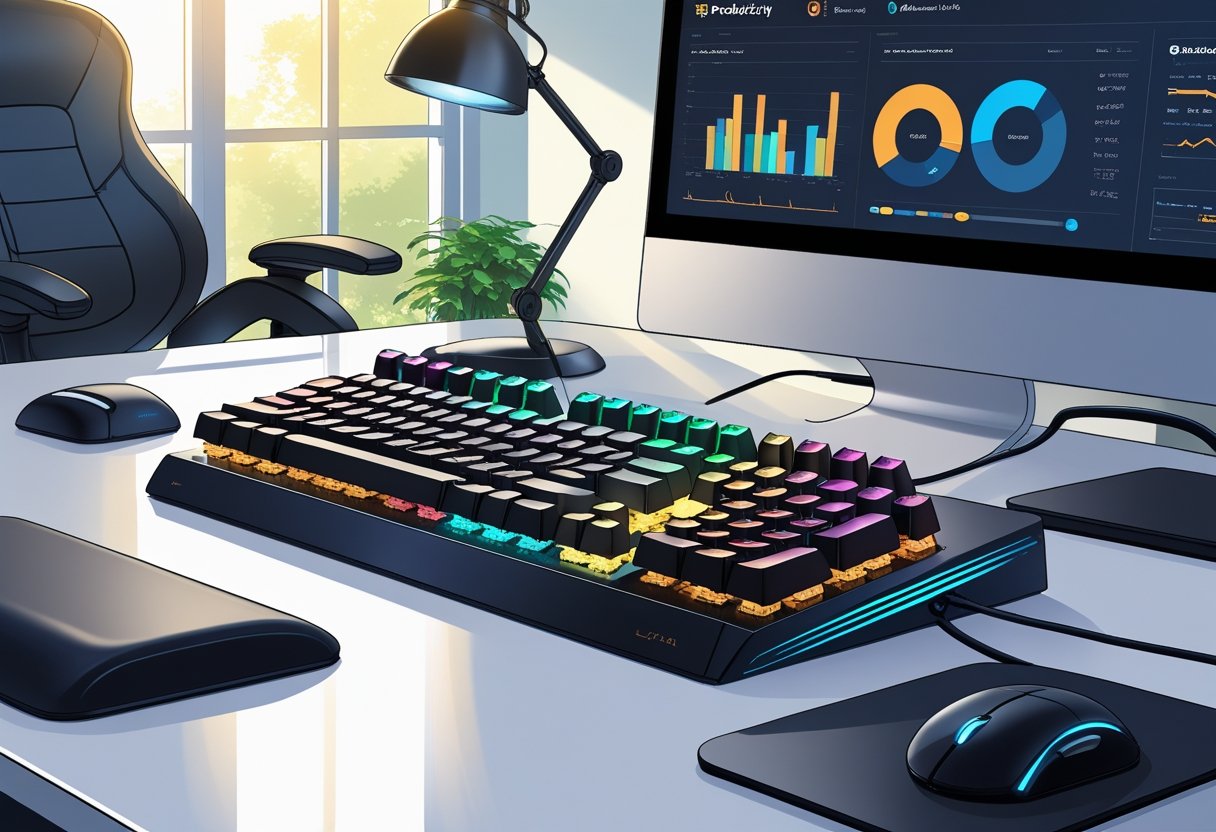
Mechanical keyboards are a different animal compared to the usual membrane ones. They’re built to last, feel better to type on, and keep your hands and wrists happier during long stretches at the computer.
Advantages of Mechanical vs. Standard Keyboards
Each key on a mechanical keyboard has its own switch, so you get a clear “click” or tactile bump. You can tell exactly when a key registers, which makes it easier to type quickly and accurately.
Mechanical switches usually need less force, so your fingers don’t get as tired. Plus, these keyboards can last for tens of millions of keystrokes—most membrane boards tap out much sooner.
A shorter actuation distance means you don’t have to press all the way down for each key. Some models let you tweak this to suit your style, which is pretty neat.
Many mechanical keyboards also have programmable keys for macros and shortcuts. That can save you a ton of repetitive motions.
Choosing an Ergonomic Keyboard for Your Needs
Ergonomic keyboards focus on keeping your hands and wrists in a natural spot. Split layouts, negative tilt, built-in wrist rests—these features help your arms relax instead of scrunching together.
Switch type matters: linear switches are smooth and quiet, while tactile ones offer feedback without the click. Hot-swappable boards let you try different switches without buying a new keyboard every time.
Material makes a difference too. Aluminum frames feel solid, and PBT keycaps hold up better than cheaper plastics. If you’re in a shared space, sound-dampening foam can keep the noise down.
Wireless options cut clutter, and the good ones last for weeks or even months on a charge. Full-size boards give you a number pad, but smaller layouts save space if you don’t need one.
Adapting to Split and Curved Layouts
Split keyboards can take a little getting used to. Your hands are farther apart, so your muscle memory needs to catch up—expect a week or two of slower typing.
Curved or contoured boards put the keys at different heights, matching your fingers’ natural reach. Some even “tent” the halves up to 30 degrees, which eases the twist in your forearms.
If you’re switching from a standard layout, start with short practice sessions. Your speed might drop at first, but it usually bounces back in a couple of weeks.
Once you adjust, the comfort is hard to give up—especially if you’ve dealt with wrist pain before.
Precision Mice: Enhance Navigation and Reduce Physical Strain
Precision mice are built for both comfort and control. They use ergonomic shapes, advanced sensors, and smart features to keep your hand happy and your work on point.
Ergonomic Mouse Designs for Hand Health
Traditional mice force your hand flat, which twists your forearm in ways it’s not supposed to go. Vertical mice flip things upright, letting your hand rest naturally.
Take the Razer Pro Click V2 Vertical—it’s got a 30,000 DPI sensor and can run for months on a charge, all while keeping your wrist at a comfortable angle.
Trackball mice are another option. You move the ball with your thumb or fingers, so your wrist barely moves at all. The Kensington Expert Mouse Wireless Trackball, for example, comes with a wrist rest and a scroll ring for minimal effort.
If you’re not ready to go full vertical, semi-vertical mice like the Goldtouch Semi-Vertical offer a gentler transition. They come in both lefty and righty versions, which is nice.
Boosting Accuracy and Control in Daily Tasks
High-DPI sensors mean you can move your cursor across the screen with tiny hand movements. This is a lifesaver for detailed tasks like design work or spreadsheets.
The Logitech MX Master 4, with its 8,000 DPI sensor and haptic feedback, is a favorite for folks who juggle lots of windows or need precise control.
Trackball accuracy depends a lot on the size of the ball. Bigger balls, like the 55mm one in the Kensington Expert Mouse, let you move the cursor further with less effort.
That efficiency adds up, especially if you’re working in CAD or photo editing where precision counts.
Customizable Buttons and Workflow Optimization
Programmable buttons can make a huge difference in your workflow. The MX Master 4, for example, has seven buttons—some for gestures, some for quick actions like copy and paste.
The Kensington Pro Fit Ergo TB550 Trackball has five customizable buttons and secure wireless connectivity. Assign your most-used functions to these buttons and you’ll spend less time moving between keyboard and mouse.
Some mice, like the QuadraClicks RBT, even let you program gaming macros and use unique clicking mechanisms that spread out the force, reducing finger strain.
Adjustable Monitor Stands and High-Resolution Displays
Getting your monitor in the right spot is surprisingly important for comfort and visual clarity. Adjustable stands make it easy, and high-res displays help keep your eyes from getting tired.
Optimal Monitor Placement for Posture
Ideally, the top of your monitor should be at or just below eye level. This keeps your neck straight and avoids that dreaded forward head tilt.
Most desks put screens too low, so a stand that lets you raise and tilt your monitor is a must. Angle it back a bit—maybe 10 to 20 degrees—to cut down on glare.
If you use a laptop, you’ll definitely need a stand to get the screen up to the right height. Pair it with an external keyboard and mouse, and you’re golden.
Quick-release stands are handy if you swap between devices a lot.
Benefits of High-Resolution Monitors
High-res monitors cram more pixels into the same space, making everything sharper and easier to read. A 4K monitor on a 27-inch screen looks crisp and gives you more room to work.
You can see more of your documents or code without scrolling, which is a big plus for designers and programmers. Sharper text means your eyes don’t have to work as hard, so you’re less likely to end the day with a headache.
Modern computers can handle 4K for office tasks without breaking a sweat. If you work with detailed visuals, spreadsheets, or editing, the extra clarity and space really do help.
Reducing Eye and Neck Strain
Eye strain happens when screens force you to focus at one distance for too long, or when the display is just a bit blurry. High-res monitors help cut down on that blur.
Adjustable stands let you put the screen where your eyes want it—close enough, but not too close. The 20-20-20 rule? It actually works better when your monitor’s set up right.
Neck strain creeps in when you’re stuck staring down at a screen for hours. Every inch your head tilts forward adds, what, ten pounds of force on your neck? That adds up fast.
Raising your monitor to eye level makes a surprising difference. It takes away that downward pull on your neck.
Adjustable stands with lots of pivot points let you tweak the angle whenever you want. Even a tiny adjustment every hour keeps your muscles from locking up.
Essential Ergonomic Desk Accessories and Setup Tips
Solid wrist support and a thoughtful desk setup really set the tone for a productive day. If your cables are wrangled and your desk isn’t a mess, it’s just easier to focus.
Integrating Wrist Rests and Keyboard Supports
Wrist rests cushion your wrists and keep them in a neutral spot while you type. The best ones? They’re usually memory foam or gel, and they line up right with your keyboard.
Placement matters a lot. You want the wrist rest snug against the keyboard, so your hands can float over the keys. The padding is there for when you pause, not when you’re actively typing.
A keyboard tray with built-in wrist support brings the keyboard down to elbow height, usually a bit below the desktop. That’s a real wrist-saver.
Pick a wrist rest that matches your keyboard’s width. For a standard keyboard, 12-14 inches works; full-size keyboards need something closer to 17-18 inches.
Padding shouldn’t be too thick—about three-quarters to one inch is enough. You don’t want your wrists pushed up.
Mouse pad wrist rests? Same idea. The cushion should line up with your mouse and keep your wrist flat with your forearm.
Pairing keyboard and mouse wrist rests gives you a pretty nice support system across your whole desk.
Customizing Desk Layout for Maximum Efficiency
Where you put your stuff matters. The monitor should be right in front of you, about an arm’s length away, with the top just at or below eye level.
If you use a second monitor, put it on your dominant side and angle it in a bit—maybe 30 degrees—so you don’t have to twist your neck.
Keep your keyboard and mouse close together and on the same surface. The keyboard should be centered with your body.
Stuff you reach for all the time—phone, notepad, whatever—should be within about 16 inches. No one wants to keep stretching all day.
Optimal Desk Zone Layout:
| Zone | Distance from User | Items |
|---|---|---|
| Primary | 0-16 inches | Keyboard, mouse, active documents |
| Secondary | 16-26 inches | Monitor, phone, daily supplies |
| Reference | 26+ inches | Storage, decorative items, archived materials |
Lefties: flip this setup, put the mouse on the left, and angle your secondary screens that way. Height-adjustable desks let you switch between sitting and standing, as long as the work surface stays at elbow height.
Document holders go right between the keyboard and monitor. That way, you’re not twisting your neck to look at papers. The holder should be as tall as your monitor for smooth eye movement.
Cable Management and Wireless Device Solutions
Cables everywhere? It’s a headache. Under-desk trays keep cords out of sight and off your feet.
Adhesive clips help run cables neatly along the desk edge or legs. It’s simple but makes a difference.
Cable sleeves are handy for bundling a bunch of cords together. Just zip them up and you’ve got one tidy strand heading to the outlet.
Velcro straps are great for cables you unplug a lot. They’re easy to adjust and reuse.
Wireless gear cuts down on cable clutter. Bluetooth keyboards and mice are super convenient, though you’ll need to stay on top of charging or swapping batteries.
Some desks have wireless charging pads built in, or you can stick one underneath. That keeps your phone powered up without extra cords.
Where you put your power strip matters. Mounting it under the desk keeps things neat and makes it easy to plug in without crawling around.
Strips with wide outlets are a lifesaver for those chunky adapters. No more fighting for space.
Labels make troubleshooting way easier. Stick them on both ends of each cable so you know what’s what.
Color-coded cables or tags help you tell power from data at a glance. It’s a small thing, but it saves time.
Performance Enhancement Tools: Storage, Security, and Connectivity
Fast, reliable storage—and keeping your data safe—really does shape how smoothly you work. The right mix of external drives, speedy connections, and solid backups keeps things humming along and protects your files.
Choosing the Right External Storage Devices
External SSDs are fast—up to 1050 MB/s read speeds, compared to old-school HDDs that top out around 120 MB/s. That gap is huge when you’re moving big files or loading apps.
NVMe external drives hooked up via USB 3.2 Gen 2×2 or Thunderbolt 4 are the speed champs. If you don’t need blazing speed, a SATA-based SSD is cheaper and still quick.
Portable SSDs are perfect for carrying big files around or working on the go. If you need loads of space for backups, a desktop external drive with more capacity is better.
Working with 4K video or giant datasets? You’ll want at least 500 MB/s read speeds to keep things smooth.
How much space you need really depends. Creators often want 1-2TB for current projects. Most folks are fine with 500GB to 1TB.
Maximizing Data Transfer Speeds
USB 3.2 Gen 2 ports can hit 10 Gbps, but if you plug into an older USB 3.0 port, you’ll max out at 5 Gbps no matter what. It’s worth checking your ports before buying a fancy drive.
Thunderbolt 3 and 4 connections go up to 40 Gbps, which is wild. You can daisy-chain devices without losing speed.
Cable quality actually matters here. A bad cable can slow things down or cause errors.
Connection Type Comparison:
| Interface | Maximum Speed | Best Use Case |
|---|---|---|
| USB 3.0 | 5 Gbps | Basic storage |
| USB 3.2 Gen 2 | 10 Gbps | High-speed transfers |
| Thunderbolt 4 | 40 Gbps | Professional workflows |
File system format makes a difference, too. exFAT works across Mac and Windows with no real file size limits. NTFS is better if you’re only using Windows.
Maintaining Data Security and Backup
Automated backup systems are a lifesaver when it comes to avoiding data loss from hardware failure or just plain old accidental deletion.
The classic 3-2-1 backup rule? It says you should keep three total copies of your data, on two different types of media, and stash one of those copies somewhere offsite.
Hardware-encrypted external drives make protecting sensitive information a lot less of a headache. No need for extra software.
With AES 256-bit encryption, you can breathe easier—if a drive gets lost or stolen, your files are still locked down.
If you’re on Windows, BitLocker’s built right in. Mac users get FileVault. Both handle encryption for external storage without much fuss.
For backup schedules, daily is the sweet spot for critical work files. Full system images? Weekly usually does the trick.
Cloud backup services like Backblaze or Crashplan give you that extra offsite safety net. Sure, local backups are way faster to restore, but cloud storage keeps your data safe from floods, fires, or whatever else the world throws at you.
Drive health monitoring tools are worth their weight in gold. They’ll tip you off to problems before things go sideways.
SMART status checks can spot bad sectors or overheating before your drive calls it quits.