
Digital workspaces are under constant threat from cybercriminals who prey on overlooked weaknesses in everyday setups. Most organizations pour resources into software security, but the physical stuff—actual devices on your desk—often gets ignored.
Bringing in advanced security hardware like biometric readers, hardware encryption keys, and privacy screens adds layers of defense that software alone can’t provide.
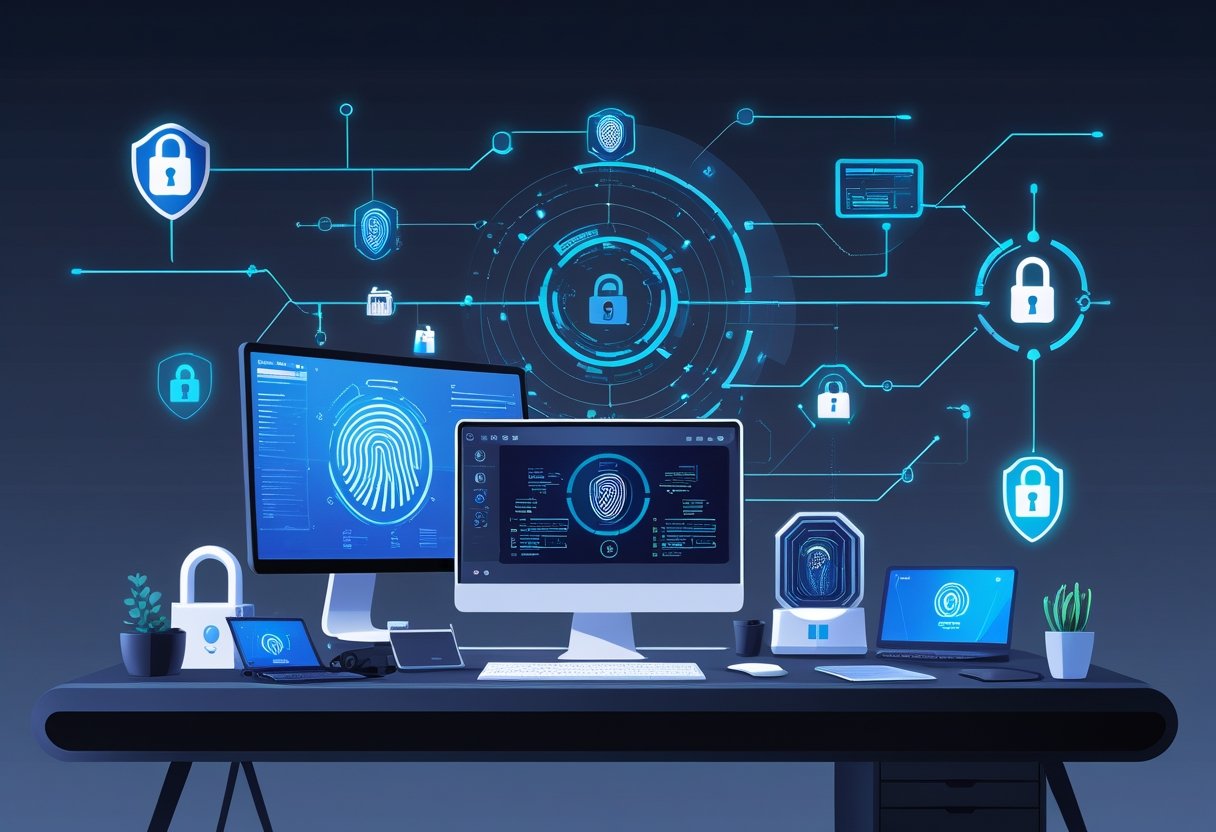
When physical security falls short, the fallout can be brutal. We’re talking regulatory fines, a bruised reputation, and of course, financial hits.
Remote work has really blown up the attack surface. People are logging in from their kitchens, coffee shops, or shared spaces—places where the old security perimeter doesn’t exist anymore.
Security peripherals fill in the gaps that software just can’t reach. A hardware encryption key, for example, keeps your data safe even if someone swipes your laptop.
Biometric readers sidestep password problems—the kind that cause a shocking number of breaches. And privacy screens? They keep wandering eyes from catching sensitive info in public spaces, where shoulder surfing is still a thing.
Key Takeaways
- Advanced security peripherals put up physical barriers that work with your software defenses to block unauthorized access.
- Biometric authentication and hardware encryption keys wipe out password weaknesses and help with compliance.
- Layered physical security—think privacy screens and hardware—seriously cuts breach risks, especially for remote and hybrid teams.
The Importance of Security Peripherals in the Digital Workspace
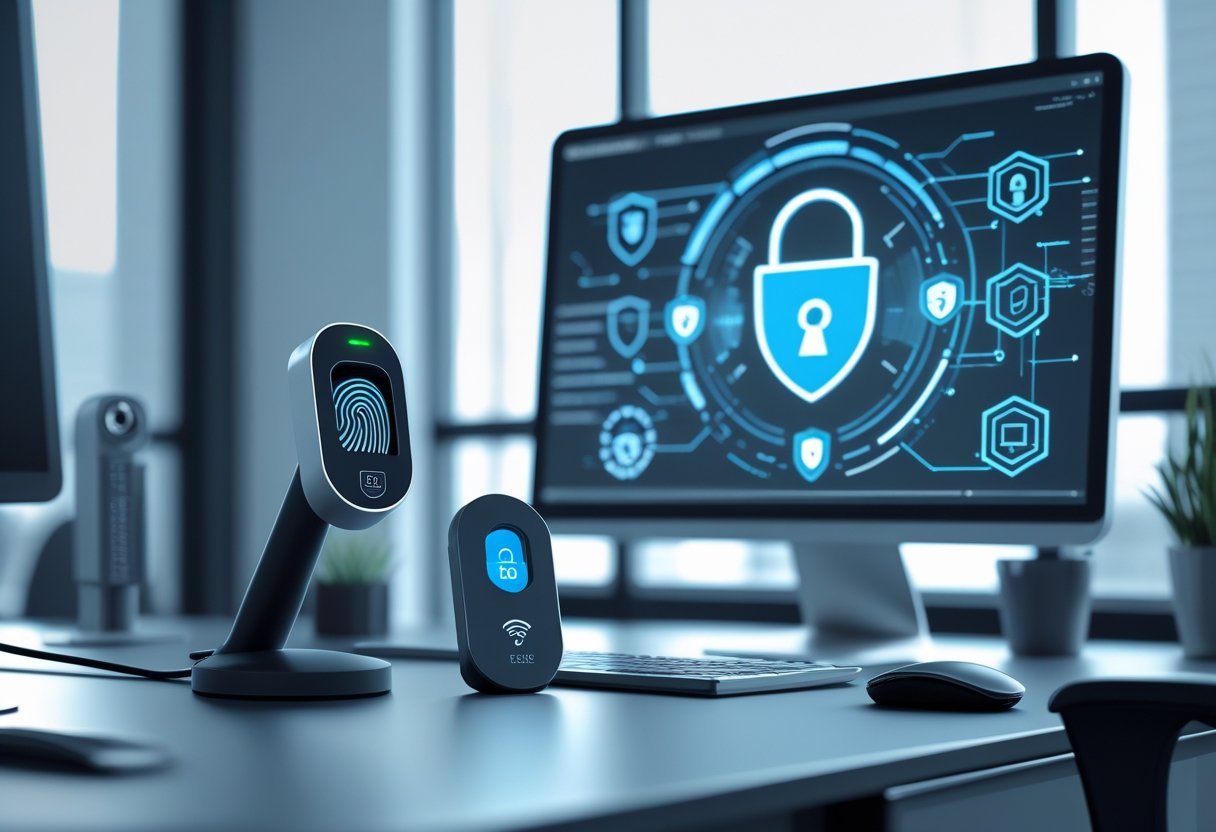
Security peripherals are your first line of defense against threats—both physical and digital—that target your workplace devices and data. Companies are under the gun to protect sensitive info, and hardware solutions are finally getting the attention they deserve.
Protecting Sensitive Information
Security peripherals set up physical barriers that keep data safe in shared or public workspaces. Privacy screens, for example, narrow the viewing angle so people next to you can’t easily read what’s on your display.
This is a game-changer in open offices, airports, or coffee shops, where strangers are always around. Hardware encryption keys keep cryptographic credentials on a physical device, not floating around in software where malware can get at them.
Plug in a USB encryption key, and you’re holding onto your authentication credentials, even if your main device gets compromised. Biometric readers go further, authenticating users through fingerprints or facial recognition.
They make password theft way harder since you can’t phish a fingerprint. Adding a fingerprint scanner to laptops or USB drives adds a verification step that passwords just can’t match.
Preventing Unauthorized Access
Physical security peripherals put up roadblocks for anyone trying to sneak into your devices or networks. Smart card readers, for instance, make you present an actual card to get access.
It’s a real-world barrier—remote attackers can’t just guess or steal their way in. These readers check both the card and the person using it.
Biometric authentication devices are another layer, blocking access even if someone gets your password. Unless the attacker has your fingerprint or face, they’re out of luck.
Hardware security keys act as physical tokens, generating time-based codes for logins. Phishing attacks don’t work because you can’t fake the key remotely.
Organizations using FIDO2 security keys don’t have to worry about credentials getting intercepted during sign-in.
Compliance and Regulatory Drivers
Security peripherals help companies tick the right boxes for compliance, especially when rules require physical controls for data protection. HIPAA, for example, wants healthcare providers to stop unauthorized people from seeing patient info, so privacy screens and biometric locks are a must.
Financial firms need to meet PCI DSS standards, which call for multi-factor authentication and encryption. Hardware keys make it easy to prove compliance during audits.
GDPR isn’t messing around either—organizations have to show they’re taking technical steps to keep personal data safe. Security peripherals are solid proof of those efforts.
Implementing Biometric Readers for Enhanced Authentication
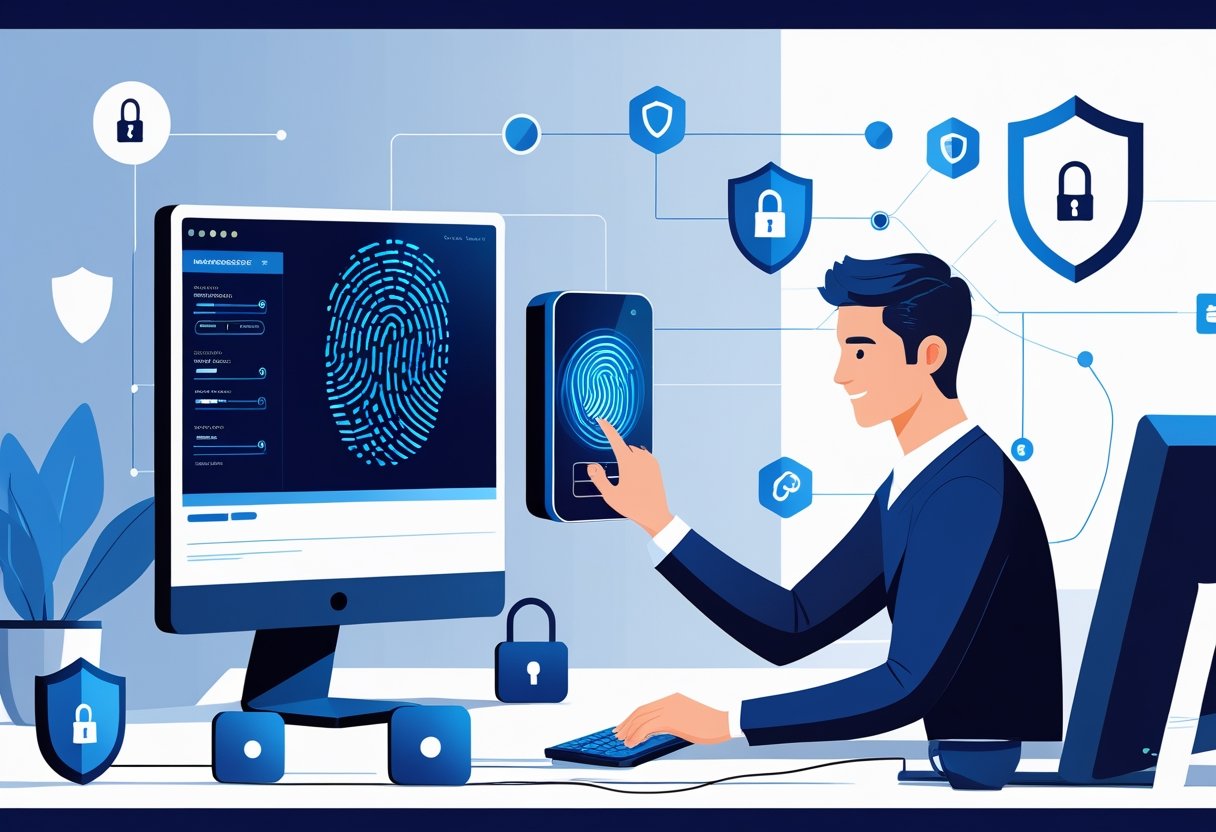
Biometric authentication is all about verifying identity with things like fingerprints or faces. It’s got some real advantages over passwords, but it’s not as plug-and-play as you might hope—accuracy and integration still need a close look.
Types of Biometric Authentication Devices
Fingerprint scanners are everywhere these days. They capture the unique patterns on your finger, then store a template locally or in a secure database.
You’ll find them as USB add-ons or built right into laptops and keyboards. Facial recognition systems use cameras to map out your features and check distances between facial points.
The latest systems use infrared sensors to stop people from tricking them with photos. Windows Hello is a good example, using special hardware for better security.
Iris scanners and palm vein readers are out there too, mostly in high-security spots. Iris scanners look at the patterns in your eye, palm vein readers map the veins under your skin, and voice recognition analyzes how you sound.
Common Deployment Options:
- Standalone USB devices: Handy, portable, and work across different computers.
- Integrated laptop sensors: Built right into business laptops for convenience.
- Desktop peripherals: Keyboards and mice with built-in biometric tech.
- Mobile authenticators: Use your phone for verification, especially when you’re working remotely.
Accuracy, Reliability, and False Rejection Concerns
False rejection rates—how often legit users get locked out—are a real concern. Good fingerprint readers keep that below 1%, but things like dry skin or cuts can mess with results.
Biometric systems don’t store actual images, just templates. How strict the system is about matching affects both security and convenience.
If you set the bar too high, unauthorized users can’t get in, but you might lock out real users more often. Having backup options like PIN codes or security keys is smart.
People with damaged fingerprints or who change their appearance (glasses, facial hair, whatever) need a fallback. Sensors need regular cleaning, too—dust or grime can throw off accuracy.
Facial recognition needs a recalibration if you make a major change to your look.
Integration Across Workspaces
Centralized management helps IT keep tabs on who’s using which biometric readers. Admins can push out firmware updates and quickly disable lost or stolen devices.
Rolling out biometric authentication gradually makes life easier. Start with a small group, iron out the kinks, and train users on how to scan properly.
FIDO2 and WebAuthn standards let biometric devices work across different websites and apps, ditching passwords for good. These protocols combine public key cryptography with biometrics for strong, passwordless logins.
You can even tie physical access control into digital authentication. The same fingerprint reader that unlocks your laptop can get you through the office door or clock you in for work.
Hardware Encryption Keys and Security Key Deployment
Hardware encryption keys keep cryptographic credentials locked inside tamper-resistant devices. When systems get breached, those credentials stay put.
Deploying physical security keys means users need both something they know (like a password) and something they have (the key) to get in. That’s a tough combo for attackers to beat.
How Hardware Encryption Enhances Data Security
Hardware security modules (HSMs) and encryption keys handle cryptographic operations outside the reach of most malware. Keys never leave the device or show up in system memory.
If attackers get into your system, they still can’t pull keys out of the hardware. Tamper-resistant cases and auto-wipe features keep things safe.
Key advantages of hardware encryption:
- Keys stay encrypted in dedicated silicon.
- All crypto operations happen in isolated environments.
- Tampering triggers instant credential destruction.
- FIPS 140-2 Level 2 or 3 certification means you’re getting real security.
For companies handling payment data, health records, or classified info, hardware encryption isn’t optional—it’s required for compliance. Software-only solutions just don’t cut it.
Choosing and Using Security Keys
Security keys use FIDO2 and WebAuthn standards for passwordless or two-factor logins. Users plug in a USB key or tap an NFC device—no typing in codes.
What to look for when picking a security key:
| Feature | Importance |
|---|---|
| USB-A/USB-C compatibility | Works with your devices |
| NFC support | For mobile logins |
| FIDO2 certification | Ensures it meets security standards |
| Biometric integration | Adds another layer of verification |
Top brands like YubiKey, Google Titan, and Thetis are popular choices. Standardizing on one brand makes things easier for IT.
To use a security key, register it with every service you need. Go to security settings, add the key, and the service stores a public key—your private key never leaves the device.
When you log in, the key signs the request, but your credentials stay safe.
Two-Factor and Multi-Factor Authentication Applications
Two-factor authentication (2FA) with security keys means attackers need both your password and your physical key. Multi-factor setups can add biometrics or location checks.
Security keys beat SMS-based 2FA and authenticator apps—phishing sites can’t trick them, since the key checks the domain before signing in. If you’re on a fake site, the key just won’t work.
Where security keys get used:
- VPN access with password plus key.
- Cloud admin logins using SSO and FIDO2.
- Privileged accounts needing both biometrics and a key.
- Code signing for developers—hardware token required.
Platforms like Azure AD, Okta, and Google Workspace let admins enforce security key requirements and set up conditional access. If you don’t have a registered key, you’re not getting in.
Security keys shut down credential stuffing attacks, since stolen passwords alone aren’t enough.
Privacy Screens and Physical Workspace Protection
Visual hacking is a real risk in shared spaces—people can see sensitive info on your screen just by glancing from the side. Privacy screens are a simple fix, blocking side views so only you can see your display.
Preventing Visual Hacking and Data Exposure
Privacy screens use micro-louvers to narrow the viewing angle to about 60 degrees. Anyone not directly in front sees a dark or blank screen.
Industries like healthcare, finance, and law use privacy screens to meet rules like HIPAA, GDPR, and PCI-DSS. They’re especially handy in open offices, airports, and coffee shops.
A 2015 report said 43% of data loss incidents involved insiders—half of those were intentional. Privacy screens also cut glare and eye strain, which is a nice bonus.
When buying, make sure the screen fits your monitor size and works with your display type, including curved screens. Look for anti-glare coatings and durable materials that can handle daily use.
Best Practices for Device Placement
Where you put your devices matters just as much as having a privacy screen. Monitors should face away from high-traffic areas, doors, windows, or glass walls—anywhere someone might peek.
If you’re working in a shared space, try to sit with your back to a wall. That way, nobody can sneak a look over your shoulder.
Open offices should avoid putting screens in direct sightlines of walkways or common spaces.
Placement tips:
- Monitor height: Keep screens at eye level for best privacy filter coverage.
- Distance from public areas: Stay 6-8 feet away from busy corridors or visitor spots.
- Lighting: Position screens perpendicular to windows to cut glare and keep privacy filters effective.
- Mobile device orientation: Lay laptops and tablets flat in public—not propped up where others can see.
A clean desk policy helps too—lock your screen when you step away, and stash devices in secure spots after hours.
Policies, Monitoring, and Incident Response for Security Hardware
Effective security hardware needs solid policies that spell out who can touch the systems. There’s also got to be ongoing monitoring to catch weird stuff, and incident response plans that kick in fast if someone tries to break in.
Defining Access Control Policies
Organizations really have to set up formal access control policies. These should say exactly which employees can use biometric readers, hardware encryption keys, and other security gadgets.
You’ll want to document authentication requirements, what devices people can use, and how to get folks enrolled in biometric systems. It’s not rocket science, but it does take some thought.
Access control frameworks should split users into roles with clearly defined permissions. IT admins usually get full control, while regular employees just get enough access to do their jobs with authentication devices.
Policies also need to cover physical stuff—where hardware keys live, and who’s responsible for backup authentication devices. It’s the kind of detail that gets overlooked until something goes wrong.
There should be step-by-step guides for onboarding new employees, like how to get them set up with biometrics or hand out hardware keys. Offboarding is just as critical—revoke access right away when someone leaves.
If you’re using cloud services like AWS, these policies need to mesh with identity and access management systems. That way, hardware authentication lines up with digital access controls.
Regular policy reviews are a must. Regulations change, and audits sometimes find holes you didn’t realize were there.
Policies should make it clear what happens if someone shares a hardware key or skips biometric authentication. Consequences need to be spelled out, even if it feels a bit harsh.
Continuous Monitoring and Logging
Security hardware spits out a ton of data, and organizations need to capture it with proper logging systems. Biometric readers track every authentication attempt, time, and user; hardware keys log access events and decryption actions.
Monitoring should watch for failed logins, weird access times, or signs someone’s messing with devices. You can set up alerts—say, three failed biometric scans in a row, or hardware key use after hours.
These logs come in handy for investigations and help tick the boxes for compliance audits that require access documentation.
Centralized logging platforms pull together data from all over, so security teams can spot patterns across multiple devices. Logs should stick around for at least 90 days—sometimes longer, depending on compliance needs.
Even UAT (User Acceptance Testing) environments need the same logging as production, just to make sure monitoring works before it goes live.
Real-time monitoring is your early warning system. If credentials are stolen or hardware keys go missing, you might catch it before any real damage is done.
Automated systems can even disable devices that act suspiciously, like repeated failures or access from sketchy locations. It’s not foolproof, but it helps.
Responding to Unauthorized Access Attempts
Incident response for security hardware isn’t quite the same as for software. You’ve got to worry about stolen biometrics, compromised hardware keys, and people physically messing with devices.
Response teams should have runbooks with immediate steps—disable affected devices, let security know, and so on. If monitoring flags something odd, someone needs to check if it’s legit.
Sometimes it’s a false alarm—maybe someone’s using a backup method or logging in from a new spot. But if it’s real, security teams have to react fast: revoke credentials and figure out how deep it goes.
Every incident needs to be documented—what hardware was involved, which systems were hit, and what fixes were made. This isn’t just paperwork; it helps you spot patterns and tighten up policies.
Communication protocols matter, too. When do you tell users, management, or regulators? It’s not always obvious.
Recovery means replacing hardware, reissuing credentials, and getting systems back online. It helps to have spare devices ready so you’re not scrambling.
Running tabletop exercises is a good idea. You don’t want the first real test of your response plan to be an actual incident.
Ensuring Ongoing Compliance and Future-Proofing Security
Regular security audits are a pain, but they’re necessary. Staying current with regulations and new threats to hardware-based security is just part of the deal.
Audit Practices and Regulatory Updates
Compliance audits check that your security gadgets meet standards like GDPR, HIPAA, or ISO 27001. Quarterly reviews of biometric setups, encryption key deployments, and access logs are a smart move—catch issues before regulators do.
IT teams should keep an eye on regulatory updates in every region where they operate. Some places want specific encryption for hardware keys or strict rules for biometric data storage.
If you’re spread across different locations, you’ve got to track what’s required in each spot. It’s a hassle, but non-compliance is worse.
Documentation is your friend here. Keep records of every security peripheral purchase, when you deployed them, firmware updates, and access logs.
This shows auditors you’re on top of things and helps you figure out which devices need upgrades.
Key compliance documentation includes:
- Device certificates and security accreditations
- User access logs and authentication records
- Firmware version histories
- Incident response reports
Adapting to Emerging Cybersecurity Threats
Cybersecurity threats keep shifting as attackers figure out new ways to get around biometric systems, clone hardware keys, or poke at firmware vulnerabilities.
Organizations really should have processes in place to update security peripheral firmware as soon as manufacturers push out patches.
There are some wild new threats out there, like deepfake biometric spoofing and, honestly, the looming specter of quantum computing attacks on encryption.
Companies have to ask themselves if their current hardware can handle post-quantum encryption algorithms, or if their mix of multi-factor authentication is enough to stand up to AI-driven attacks.
Security teams ought to schedule regular testing for their peripheral devices.
A good idea? Monthly vulnerability scans of biometric readers and encryption keys to catch weaknesses before anyone else does.
It helps to keep up with hardware vendors who offer threat intelligence tailored to the specific security devices you use.
Threat adaptation strategies:
- Subscribe to vendor security bulletins
- Test peripherals against known attack methods
- Replace legacy devices lacking modern protections
- Implement layered authentication combining multiple peripheral types